Back Up & Share Characters
Back Up & Share Characters
AICHIKI lets you bring characters in from a file and take your own characters out as a file. This is useful for backing up your work, moving a character between devices, or trading characters with other people. Both use the CCv2 format (Character Card V2), the standard character card format used across many roleplay apps, so your characters travel beyond AICHIKI too.
Sharing and exporting are not the same thing
Sharing gives someone a link to a public character so they can chat with it. Anyone can share the link to any public character.
Exporting saves a character's actual data (its bio, opening scene, and more) as a file. You can only export characters you created. The export options do not appear on characters made by other people.
Importing a Character
You can import a character from a JSON file (.json) or a character card image (.png with embedded data). Both are handled the same way: AICHIKI reads the character data and fills in a new character for you to review and save.
How to import:
- On the home screen, tap CREATE
- Make sure you are in Full Control (Form) mode. Import is only available here. If Aichiki's guided chat is open, switch to form mode using the pencil icon first
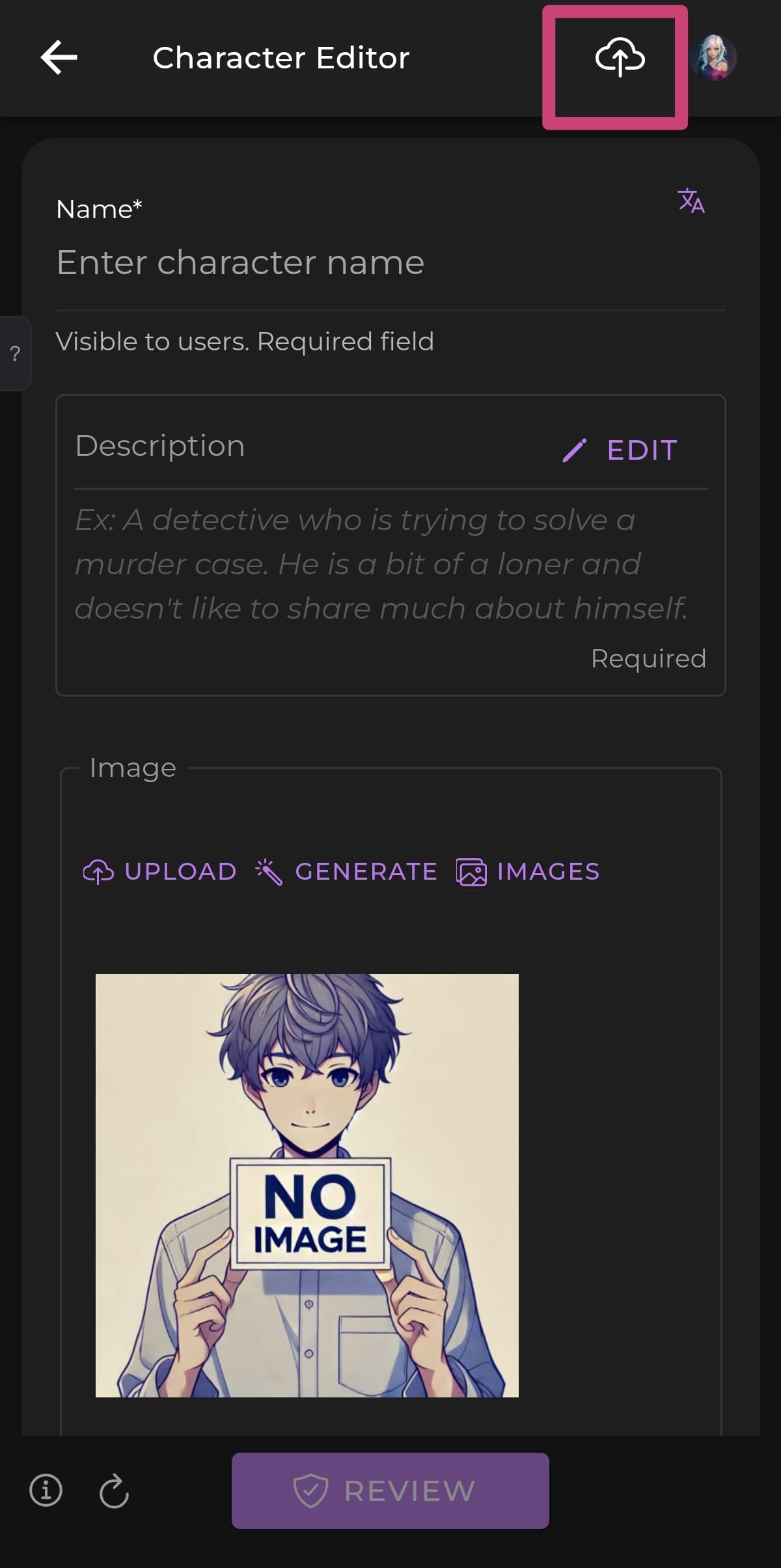
- Tap the cloud icon at the top of the Character Editor
- Choose your file
- AICHIKI fills in the fields and runs the usual review. Check everything looks right, then tap Save to create the character
For a PNG card, the picture inside the file is also used as the character's image. For a JSON file, you set the picture yourself afterward.
Oversized fields are shortened, not rejected
Character cards from other apps often have no length limits, so some fields may be longer than AICHIKI allows. When that happens, AICHIKI automatically shortens the field to fit instead of refusing the import. Any shortened field is flagged in the editor so you can review it before saving.
AICHIKI's field limits:
| Field | Limit |
|---|---|
| Name | 100 characters |
| Description | 1,000 characters |
| Bio | 10,000 characters |
| Opening Scene | 3,000 characters |
Exporting a Character
Exporting saves one of your own characters as a file you can keep or share. You can export to two formats.
How to export:
- Open the character you want to export. You can find your characters by tapping SEARCH or EXPLORE on the home screen and then using the My Characters filter or the search bar, or by opening the side menu and tapping PROFILE, where all your characters are listed
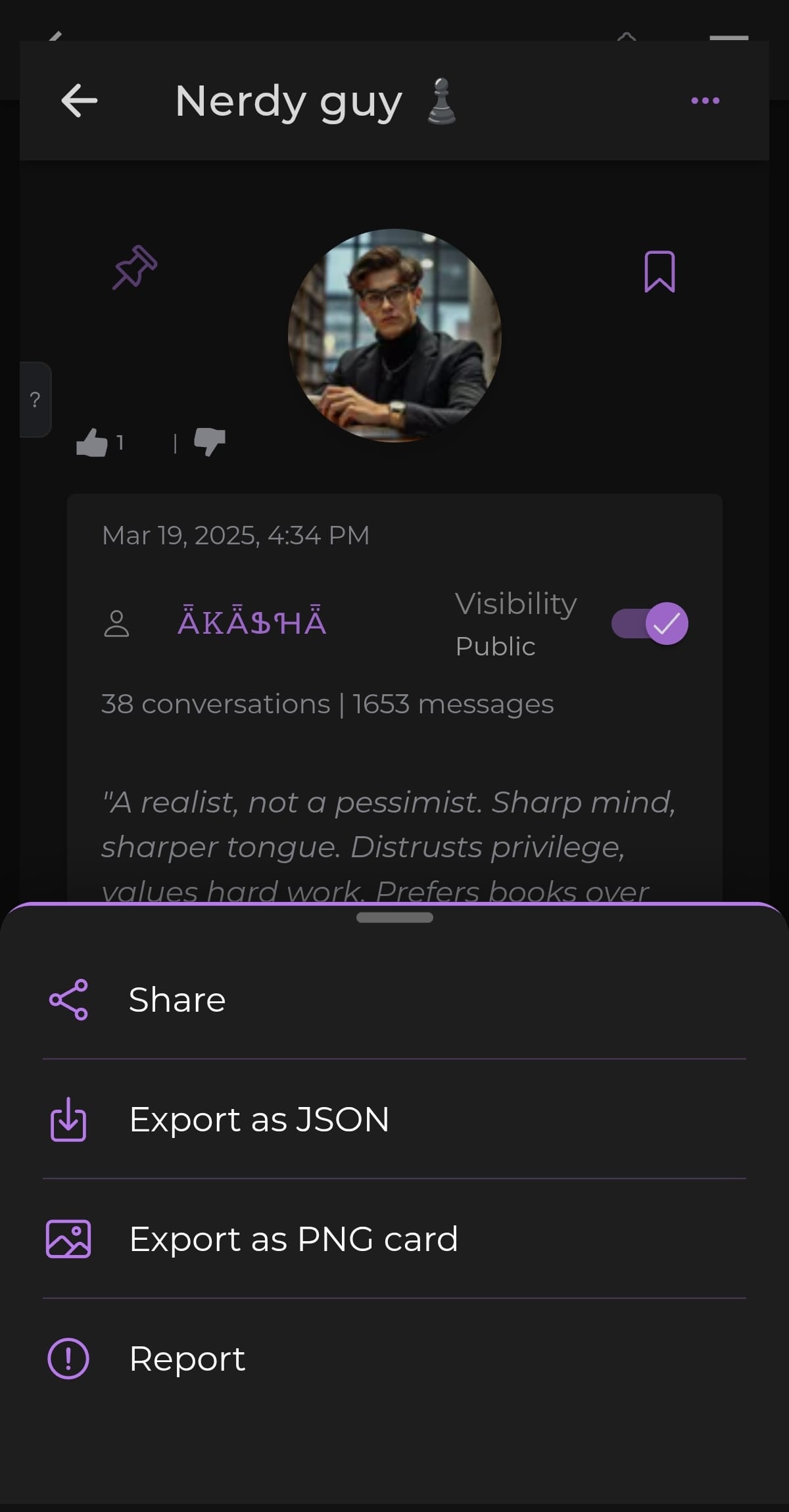
- On the character's page, tap the ⋯ menu in the top right
- Choose Export as JSON or Export as PNG card
- Your phone's share menu opens. From here you can Save the file to your device or send it to any app or contact
Which format should I choose?
- Export as JSON creates a
.jsonfile containing the character's data. It is small and works anywhere that accepts character cards. - Export as PNG card creates a
.pngimage of your character with the data tucked invisibly inside the file. It is larger because it includes the picture, and it is handy when you want a character that looks like a normal image but still carries everything needed to import it.
Good to know: round trips are not identical
AICHIKI organizes character information a little differently from the standard card format. If you export a character and then import it again, the text will all be there, but it may be arranged slightly differently between the Bio and Opening Scene fields. The character stays intact; only the layout of a few fields may shift
Still Need Help?
If you run into trouble importing or exporting a character, feel free to contact our support team.