⚙️ Settings & Preferences
Your Settings page gives you control over your account, app appearance, chat preferences, and more. Here's everything you can customize:
📧 Account Information
- Profile Picture (Avatar): Your profile picture, shown at the top of the Settings page. Tap the edit (pencil) icon to change it.
- Email: Your account email address (with sign out option)
- Two-Factor Authentication (2FA): Add an extra layer of security to your account. Shows whether two-factor authentication is currently enabled or disabled — tap the edit icon to change it.
- Display Name: The name shown on your profile (editable)
- About Me: A short bio or description about yourself (editable)
🖥️ App Settings
Interface Language
Choose your preferred language for the app interface and labels, buttons, menus, and navigation will display in your chosen language.
Auto-Translate Character Info
When enabled, character names and descriptions are automatically translated into your interface language.
Font Size
Adjust text size across the entire app:
- Small: Compact text for more content on screen
- Normal: Default font size (Default)
- Large: Bigger text for improved readability
Theme Mode
Control how the app looks:
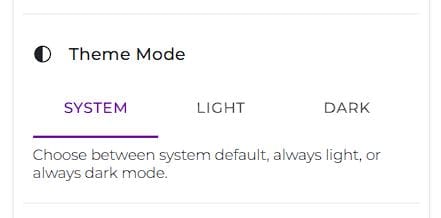
- System: Automatically follows your device's theme setting (Default)
- Light: Always use light mode
- Dark: Always use dark mode
Clean Unicode Characters
When enabled, removes Unicode characters from character descriptions and names, and converts unusual or decorative fonts into the app's default font. This setting was added to improve readability, including for users with dyslexia.
TIP
If Auto-Translate is enabled, Unicode cleaning is applied automatically as part of the translation process.
💬 Chat Settings
Content Language
Choose your preferred language for chat interactions. This setting:
- Pre-selects your language when starting new chats
- Ensures characters greet you in your chosen language
- Makes the conversation flow more naturally in your preferred language
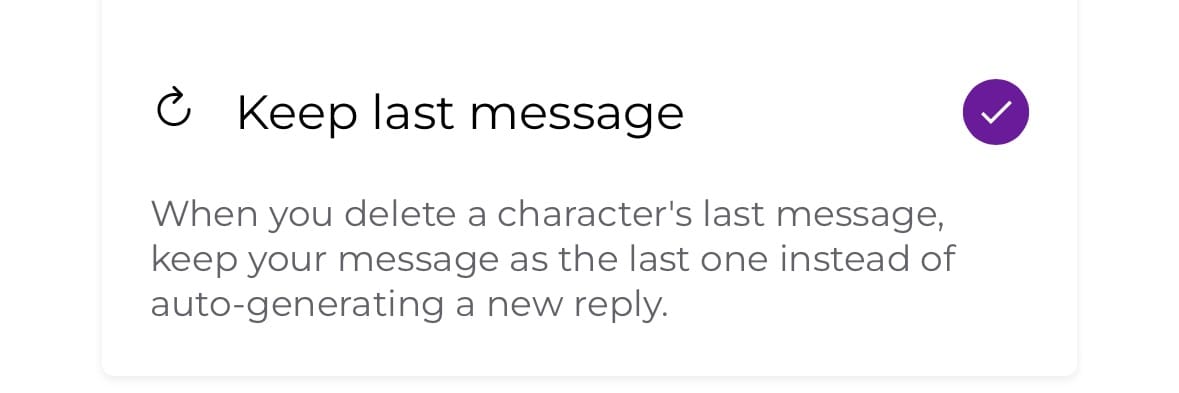
Keep Last Message
When enabled, deleting a character's last message will not automatically generate a new reply. Your message stays as the last one in the conversation, and the character will only respond again when you tap Continue.
Disabled by default — enable it if you prefer to have control over when the character responds after deleting their last message.
Emojis in Chat
Choose whether characters use emojis in their replies. This is the default for new chats:
- Yes: Characters may include emojis in their messages
- No: The AI will avoid using emojis in its replies
You can still toggle this per conversation, so your default here doesn't lock you in.
Message Sending Behavior (web only)
On the web version, you can choose how the Enter key works when typing messages:
- CTRL+ENTER SENDS:
- Press Enter for a new line
- Press Ctrl+Enter to send the message
- Best for longer messages and detailed roleplay
- ENTER SENDS:
- Press Enter to send the message immediately
- Press Shift+Enter for a new line
- Best for quick, casual conversations
TIP
This setting only applies when using Aichiki in a browser with a keyboard — it's not shown in the mobile app.
🎨 Creation
Character Creation Mode
Choose how you want to create and edit characters:
| Setting | What it does |
|---|---|
| Form | Always open the full control form |
| Chat | Always start with Aichiki's guided conversation |
| Ask | Ask you every time (shows the mode picker) |
This preference is initially set when you first create a character and check the "Remember my choice" checkbox. You can change it at any time here.
TIP
Not sure which to pick? Ask lets you decide each time, so you can use Aichiki for quick characters and Full Control for detailed ones.
For more details on both creation modes, see Creating & Editing Characters.
🔔 Notification Preferences
- Push Notifications: Receive notifications directly on your device
- Email Notifications: Receive notifications via email
Notification Channels
Fine-tune which types of notifications you receive:
- Support & Tickets: Replies from our support team to your messages
- General: Platform news and announcements
- Aichiki Messages: Messages from Aichiki
- Character Notifications: Updates related to characters
- Character Messages: Messages from characters
👤 Identities Management
Your Identity List
View and manage all your created identities:
- Profile pictures and names for each identity
- Default indicator: Shows which identity is set as default for new chats
- Add new identities with the "+ ADD" button
- Clear default to remove automatic identity selection
Default Identity Settings
- Set Default: Choose which identity to use automatically for new chats
- Clear Default: Remove the default setting so you're asked to choose each time
- When both default identity and language are set, new chats start immediately without popups
🔧 Account & More
At the bottom of the Settings page you'll find quick links for managing your account:
- Identities: Opens your identity list (see Identities Management above)
- Contact Us: Get help from the support team
- Referrals: View your referral link and rewards for inviting friends to Aichiki
- Manage Subscription: View and manage your subscription plan
- Restore Purchases: Restore a previous purchase on this device
- Reset Password: Change your account password
- Export Data: Download your account data
- Account Standing: Check the status of your account
- Delete Account: Found at the bottom of the Settings page. Once you confirm deletion, your account and everything associated with it, characters, chats, pictures, and history, will be permanently deleted within seven days. This action cannot be undone.
🚪 Sign Out (Log Out)
To log out of your account:
- Open Settings
- Tap SIGN OUT at the top of the page, next to your email address
Signing out (logging out) safely ends your session on this device. Your characters, chats, pictures, and settings stay saved to your account — everything will be right where you left it when you sign back in.
🚀 New Chat Experience
When you start a new chat, the behavior depends on your settings:
If NO defaults are set:
- A popup appears asking you to select both Identity and Language
- Choose your identity for this chat session
- Choose the language for this conversation
If ONLY default identity is set:
- A popup appears asking you to select Language
- Your default identity is used automatically
If ONLY language is set:
- A popup appears asking you to select Identity
- Your preferred language is used automatically
If BOTH default identity AND language are set:
- No popup appears - chat starts immediately
- Uses your default identity and preferred language
- Character greeting appears in your selected language
💡 Tips for Best Experience
- Set both defaults if you primarily use one identity and language
- Choose appropriate language - characters will adapt their greeting and responses
- Turn off Emojis in Chat if you prefer emoji-free roleplay — you can still enable it for individual conversations
- On web, use CTRL+ENTER mode for detailed roleplay and storytelling
- Update your About Me to help characters understand your preferences
- Enable Two-Factor Authentication to keep your account secure