Creating & Editing Characters
Creating your own character on AICHIKI is easy - and you get to choose how you want to do it.
Choosing Your Creation Mode
When you create a new character for the first time, you'll be asked how you'd like to build it. There are two modes:
WARNING
⚠️ Email Verification Required
You won’t be able to create or save characters until your email address is verified.
If you signed in with Google or Apple, this usually happens automatically. For other email sign-ups, you’ll need to verify manually before continuing.
🔹 How to verify
- During onboarding, tap Verify Email
- Open the email you receive
- Tap the verification link
- Return to the app and continue creating your character
🔹 Skipped it?
You can verify anytime:
- Go to Settings
- Scroll to the bottom
- Tap Resend Verification Email
🔹 Not receiving the email?
- Check your Spam/Junk folder
- Make sure your inbox has space
- Request the email again from Settings
With Aichiki (Guided Chat)
Aichiki walks you through the entire process step by step in a friendly conversation. She asks you questions about your character — their name, gender, age, appearance, personality, world, and more — and then uses your answers to generate a full character draft.
Best for:
- First-time creators who aren't sure where to start
- People who prefer a conversational, guided experience
- Getting a complete character quickly with minimal effort
How it works:
- Character basics — Aichiki asks for a name, gender, and age. You can pick from preset options or type your own. Not sure about a name? Choose "I'll decide later" and Aichiki will suggest names later based on the character's personality and story
- Appearance — Describe what your character looks like: hair, eyes, clothing, tattoos, scars — whatever makes them visually distinctive
- Personality traits — Pick from suggested traits (Confident, Mysterious, Kind, Brave, etc.) or type your own. Pick as many as feel right
- World & Setting — Choose your character's world: Modern, Fantasy, Sci-Fi, Historical, or something custom
- Your relationship — Define how this character relates to you: Friend, Mentor, Rival, Companion, Romantic, or something else
- Extra details (optional) — Add anything else: backstory, quirks, goals, whatever makes your character special. You can skip this step
- Name suggestion — If you skipped naming earlier, Aichiki suggests names that fit the character. Or type your own
- Character generation — Aichiki compiles everything into a complete character profile with a vivid description, bio, and opening scene
- Image — Choose to generate an image using AI or upload your own
- Final tweaks — See the full character and ask Aichiki to adjust anything in natural language (see Refining Your Character)
Tips:
- You can go back to a previous question at any time using the Back button
- You can switch to Full Control mode at any point if you'd rather fill in the fields yourself
Full Control (Form)
A traditional form where you fill in each field directly — name, description, bio, opening scene, greeting, and more. You have complete control over every detail.
Best for:
- Experienced creators who know exactly what they want
- Fine-tuning specific fields with precision
- Copying in content you've already written elsewhere
How it works:
- A form appears with all character fields
- Fill in the fields you want — only the name is required to get started
- Use the Save & Review button to validate your character before publishing
Tips:
- You can switch to Aichiki's guided mode at any time using Aichiki's icon
- On mobile, scroll down to see all available fields — the form extends below the fold
Importing a Character
If you already have a character saved as a CCv2 card (a standard character file used across many roleplay apps), you can bring it straight into AICHIKI instead of building from scratch. Both .json files and character card images (.png with embedded data) are supported.
How it works:
- Open the character editor in Full Control (Form) mode. Import is only available here, so if you are in Aichiki's guided mode, switch to form mode using the pencil icon first
- Tap the cloud icon at the top of the editor
- Choose your file. AICHIKI reads the character data, fills in the fields for you, and runs them through the usual review before you save
- Check everything looks right, then tap Save to create your character
TIP
If a CCv2 card has fields longer than AICHIKI's limits, we automatically shorten them to fit rather than rejecting the import. Any shortened fields are flagged in the editor so you can review them before saving.
Switching Between Modes
You're never locked into one mode. At the top of the character editor, you'll see two icons in the corner:
- Aichiki's avatar = Chat mode
- Pencil icon = Form mode
Tap either icon anytime during creation or editing to switch. Your progress carries over — nothing is lost when you switch.
TIP
Even if you've set a preferred mode in Settings, you can always switch mid-creation. Your preference is just the starting point.
Remembering Your Preference
When the mode picker appears, you'll see a "Remember my choice" checkbox at the bottom. If you check this:
- Your chosen mode will be used automatically every time you create or edit a character
- You won't see the mode picker again
To change your preference later, go to Settings > Creation and choose between:
| Setting | What it does |
|---|---|
| Chat | Always start with Aichiki's guided conversation |
| Form | Always open the full control form |
| Ask | Ask you every time (shows the mode picker) |
Character Fields Guide
Whether you use Aichiki or Full Control, your finished character includes:
- Name and basic info
- Description — a short public summary shown on the character's profile
- Bio — full background, personality, backstory, and traits. See Strong bio examples for inspiration
- Personality traits — defining characteristics
- Goals and motivations
- Quirks and unique details
- Opening scene — the character's first roleplay message to set the mood
- Greeting — an alternative first message for non-roleplay characters
- Picture — generated with AI or uploaded
About Pictures
You have two options:
- Upload a photo from your device
- Generate one using AI
TIP
If you want to generate a picture, it's best to do this after filling out the character's details. The AI will use this information to auto-generate an image prompt.
When generating:
- A new page will open with a prompt (which you can edit)
- You can generate multiple images if you don't like the first one
- Once you're happy, click Accept to save the image
You can also choose a visual style from the dropdown:
- Anime
- Realistic
- 3D
- Chibi
- Fantasy
- Photo
Refining Your Character with Aichiki
After your character is generated (or when you open an existing character in Aichiki mode), you enter the refine chat. This is where the magic happens — you can talk to Aichiki naturally and ask for changes.
Examples of things you can say:
- "Make the bio more mysterious"
- "Change the opening scene to take place in a library"
- "Add more humor to the personality"
- "Make the greeting warmer and more inviting"
- "Give this character a tragic backstory"
- "Make her more sarcastic"
- "Add a childhood trauma"
Aichiki will update the relevant fields and show you the result. You can keep refining as many times as you'd like before saving.
Generating Memories
You can also ask Aichiki to create preloaded memories for your character — vivid backstory moments that add depth to conversations.
Examples:
- "Give this character some childhood memories"
- "Add memories about a past romance"
- "Create some memories of their time as a soldier"
These memories are automatically saved to your character and can enhance conversations for users with the Unlimited Memory feature. Characters created with Aichiki also get a set of starter memories automatically.
Draft Auto-Save
Need to step away in the middle of creating? No problem. If you close the app while working on a character, it's automatically saved as a draft. When you go back to the character creator, your character will be there exactly as you left it.
Review & Verification
Before your character is finalized, you'll see a Review Results screen where our verification system checks your character and may flag potential improvements. This might include:
- Grammar or clarity issues in descriptions
- Missing elements (like an opening scene or character greeting)
- Inconsistencies or vague details
- Suggestions to flesh out weaknesses, limits, or short-term goals
You're in control. You can:
- Ignore the list and save your character as-is
- Fix All to auto-fix all flagged items at once
- Fix individual items one at a time
- Tap Aichiki's icon to go back to chat mode and have her help you refine things
Content Guidelines
The verification system is there for protection, not judgment. Dark, complex, or morally gray backstories are totally fine — great characters often come from hard backgrounds. We just want to keep things safe and fun for everyone.
What we don't allow: underage characters, clear violence in opening scenes, or scenarios designed to put users in uncomfortable situations. Beyond that, creative freedom is yours.
Privacy: Public vs. Private
When you save a character, it's private by default — only you can chat with it.
You can change this anytime on the character's profile page using the visibility toggle:
- Grey toggle = Private (only you can access)
- Purple toggle = Public (anyone can chat with your character)
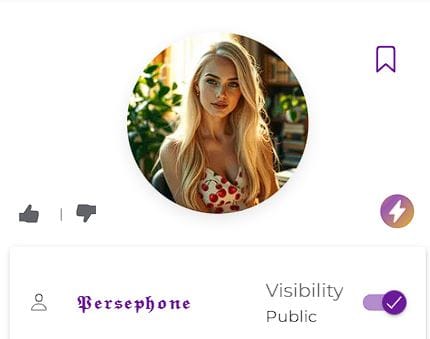
Make your character public to share it with the community, or keep it private for your eyes only.
Quick Reference
| Action | How to do it |
|---|---|
| Create a new character | Tap + or New Character from the home screen |
| Switch modes during creation | Tap Aichiki's avatar (chat) or pencil icon (form) in the corner |
| Go back a step (Aichiki mode) | Tap the Back button below the current question |
| Skip naming your character | Choose "I'll decide later" when asked for a name |
| Change your default mode | Go to Settings > Creation > Character Creation Mode |
| Edit an existing character | Open the character and tap Edit Character |
| Ask Aichiki to add memories | Type something like "add some past memories" in the refine chat |
| Resume a draft | Open the character creator — your draft is automatically loaded |