My images : Your Personal Gallery
What is My Images?
My Images is your private gallery. It holds every picture you have generated or uploaded inside AICHIKI, all in one place. Only you can see it. From here you can search your gallery, preview any picture at full size, save pictures to your device, share them, and reuse them as profile pictures, identity avatars, or character portraits.
How do I open my gallery?
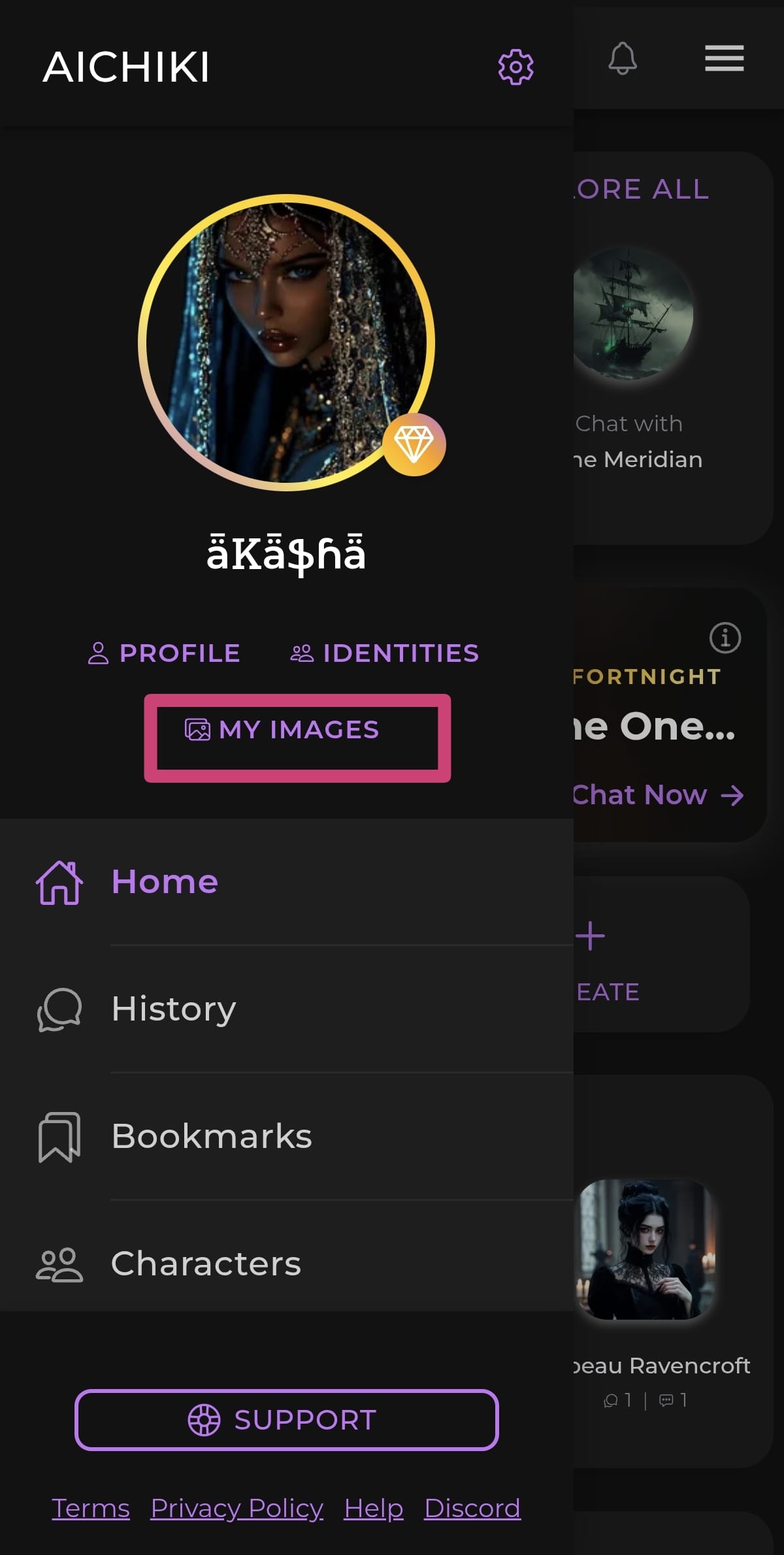
Open the menu in the top right corner of the home screen, then tap MY IMAGES. Your full gallery opens, with the newest pictures first.
How do I search my images?
Your gallery includes a search bar at the top called Search your images.
Before your first search, tap the ✨ sparkle button to the right of the search bar. This indexes your gallery so the search can match pictures by what they actually show. When it finishes, you will see the message All images indexed.
After indexing, type what you are looking for into the search bar, for example "red hair," "blue demon," or "snow." The gallery filters down to the matching pictures. This feature is in beta, so results will keep improving over time.
How do I preview a picture at full size?
Saving and sharing both start the same way.
- Press and hold any picture to enter selection mode. A circle appears on each picture, and a checkmark and purple border mark the ones you select.
- Tap any other pictures you also want. Use All at the bottom left to select your whole gallery at once. The counter shows how many you have selected.
- Tap the share button (the upload icon) at the bottom of the screen.
- Your phone's own share menu opens. From here you can tap Save to download the picture to your device, or send it to any app or contact your phone offers.
The exact options in the share menu come from your phone, so they look a little different on iPhone and Android.
How do I reuse a gallery picture elsewhere?
You can pull any picture from your gallery straight into a profile, an identity, or a character. Wherever you set an image, you will see an Image section with three options: UPLOAD, GENERATE, and IMAGES. Tap IMAGES to open your gallery as a picker. In picker mode:
- Tap the eye icon on a thumbnail to preview it at full size.
- Tap a picture to choose it. A purple border shows your choice.
- Tap SELECT in the top right to apply it.
The same search bar and ✨ indexing button work here too.
Where can I open the picker from?
There are several places that let you reach your gallery as a picker:
- Your profile picture: open the menu, tap PROFILE, tap the edit pencil on your profile, then tap the pencil next to your profile picture, then tap IMAGES.
- A new identity: open the menu, tap IDENTITIES, tap + ADD, then tap IMAGES in the Image section.
- A character: on the home screen tap CREATE, then tap IMAGES in the Image section of the Character Editor.
Still Need Help?
If you have questions about your gallery, image search, or saving pictures, feel free to contact our support team.