Your Profile
Your profile is your public face on AICHIKI. Other users can visit it to discover your characters, follow you, and learn about you. You have full control over what it shows and how it looks.
How to Access Your Profile
Open the sidebar and tap Profile.
How Other Users Find Your Profile
When someone visits a character you've created, they'll see your display name on the character page. Tapping it takes them to your profile. If you have no public characters, your profile cannot be found by other users.
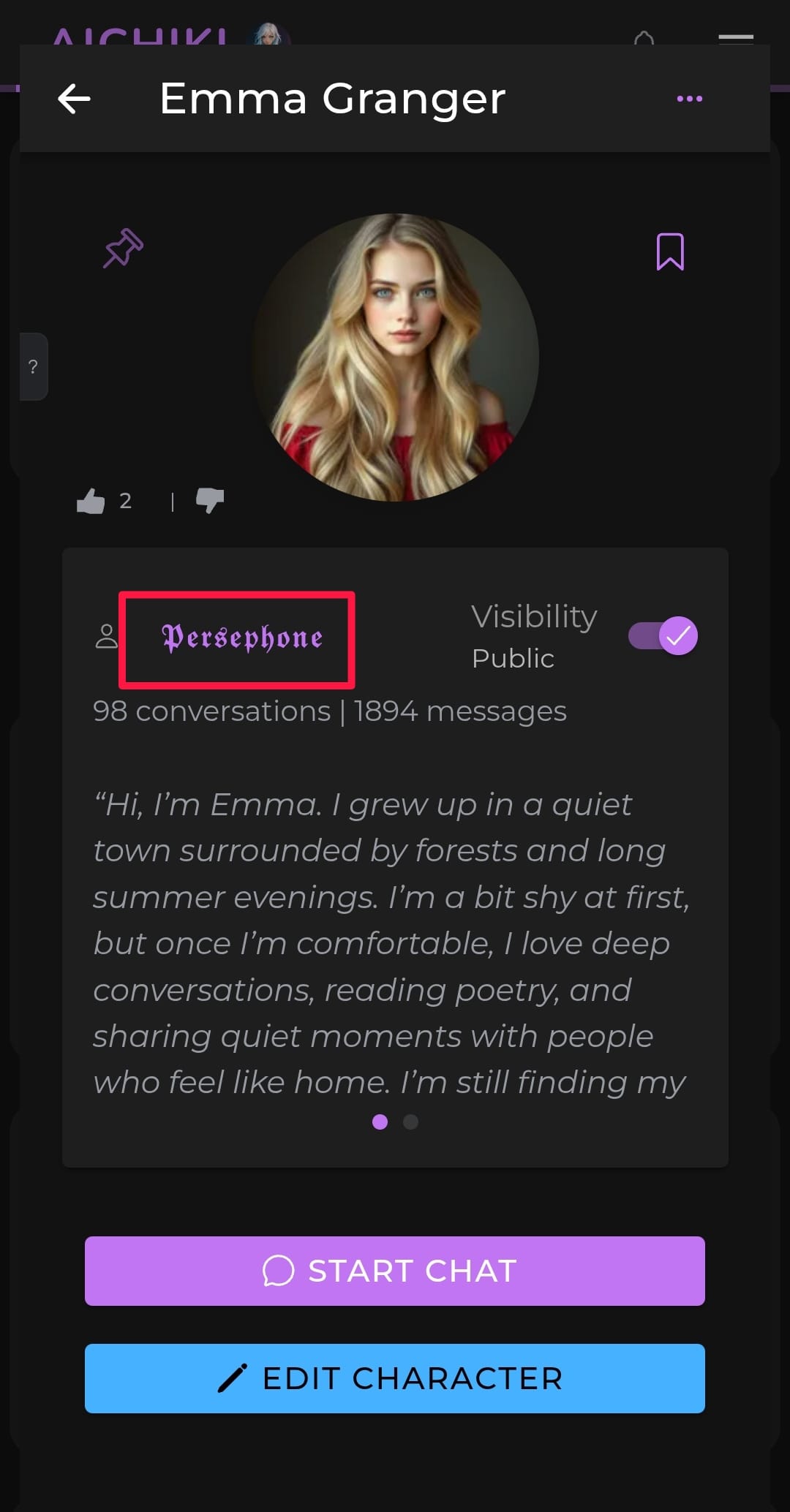
What Your Profile Shows
Profile Card
At the top of your profile you'll find your profile card, which displays:
Profile picture — your avatar
Display name — required, visible to all users
About Me — your bio, visible to all users
Subscription badge — shown in the top-right corner of your card:
💎 Diamond = Premium subscription
⚡ Lightning bolt = Plus subscription
🏅 Ribbon badge = Founders Club member
No badge = Free user
Profile border — Premium users have a gold border, Plus users have a silver border, founders club members have bronze border, Free users have no border
Follower count — the heart icon with a number shows how many users follow you. Other users can tap the heart to follow you. When someone already follows you the heart appears filled.
Action Buttons
Below the bio you'll find a row of buttons:
Share — generates a shareable link to your profile that you can send anywhere
Fans — opens your private followers list. Only you can see this. It shows who follows you, when they followed, and whether you follow them back. A filled heart means you follow them back, an empty heart means you don't. Tap the heart to follow them back, or tap their picture to visit their profile
Theme — opens the profile theme selector so you can personalize how your profile looks. (see: Profile Themes)
Edit — opens the profile editor where you can update your display name, About Me, and profile picture. You can also toggle whether your referral code is shown on your profile from here
Referral Code
If you have "Show referral code in profile" enabled, your referral code will be displayed below your profile card. Other users can use it at sign up and you both receive 5 days of Plus.
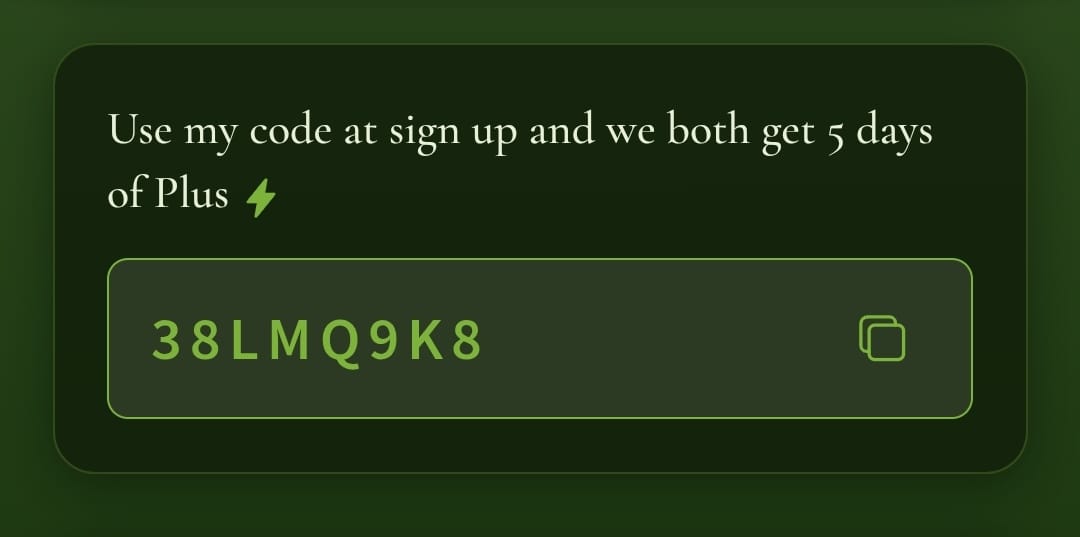
My Top 10
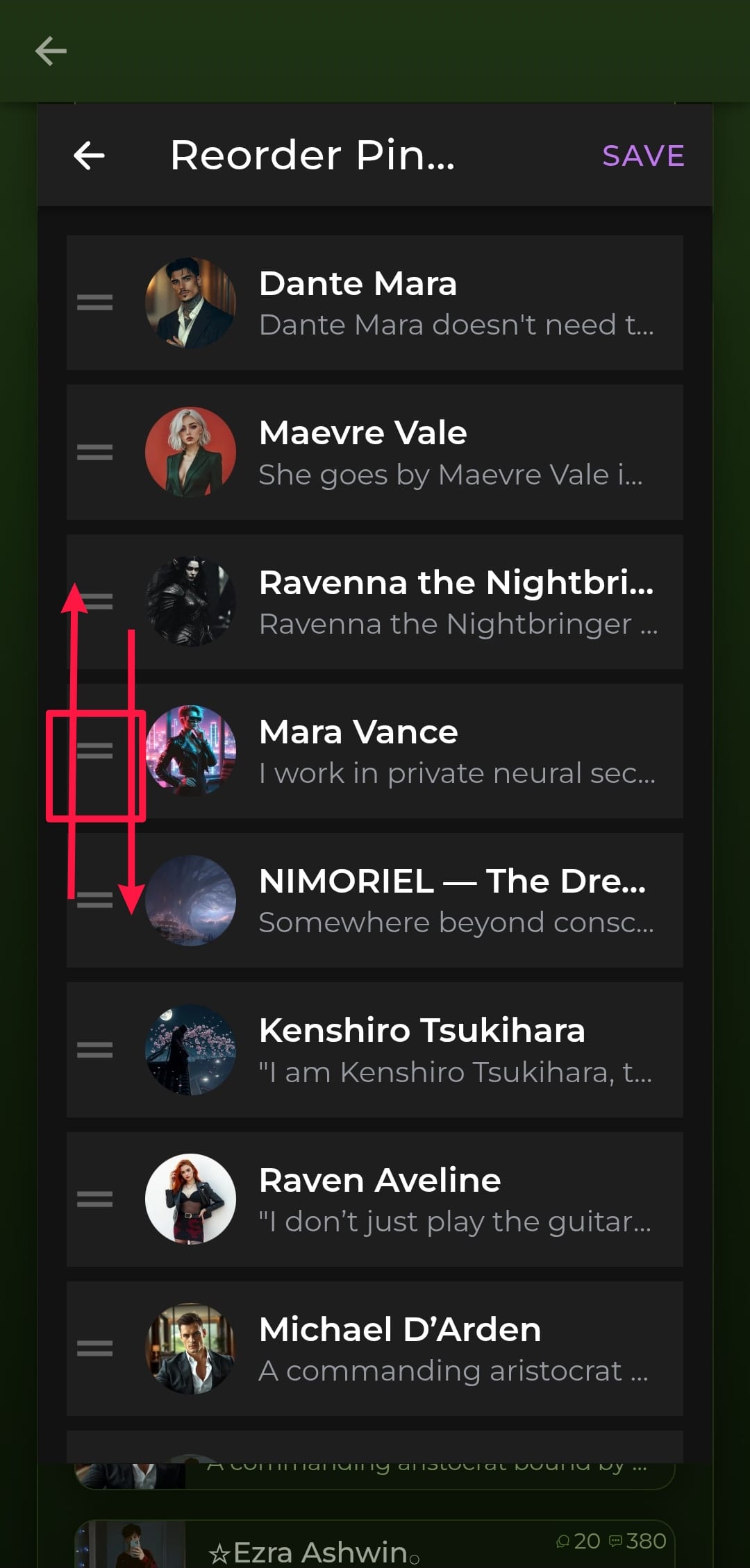
Below the referral code you'll find your My Top 10 section, a curated list of your favorite characters that you've chosen to highlight on your profile.
A few things to know:
It doesn't have to be exactly 10 — you can pin as few as you like
You can only pin your own public characters, private characters cannot be pinned
When a character is pinned to your Top 10 it is removed from the main characters list below to avoid duplicates. If you unpin it, it moves back to the main list
Tap the pencil icon next to "My Top 10" to edit your selection
Your Characters List
Below the Top 10 section you'll find the full list of your characters. The person icon with a number shows your total character count, this is visible to all users unless all your characters are private.
Private characters are visible only to you in the list, they are labeled "Private" and other users cannot see them. If all your characters are private, other users will only see your name and bio on your profile.
You can sort the list using the dropdown, options include Most Popular, Name (A–Z), Name (Z–A), Newest First, and Oldest First.
Editing Your Profile
Tap the edit button (pencil icon) in the action row to open the profile editor. From here you can:
Update your display name (required, visible to all)
Edit your About Me (visible to all)
Change your profile picture — upload a photo, generate one with AI, or pick one from your My Images gallery
Toggle Show referral code in profile on or off
TIP
You can also update your display name and About Me from Settings, accessible via the gear icon at the top of the sidebar.