Settings
Your Settings page is where you manage your account, customise how the app looks and behaves, control your notifications, and handle subscriptions and data. This guide walks through each section from top to bottom.
How to Find Settings
On Mobile: Open the sidebar by sliding your finger from the left edge of the screen toward the middle, or tap the three lines in the top-right corner. Then tap Settings.
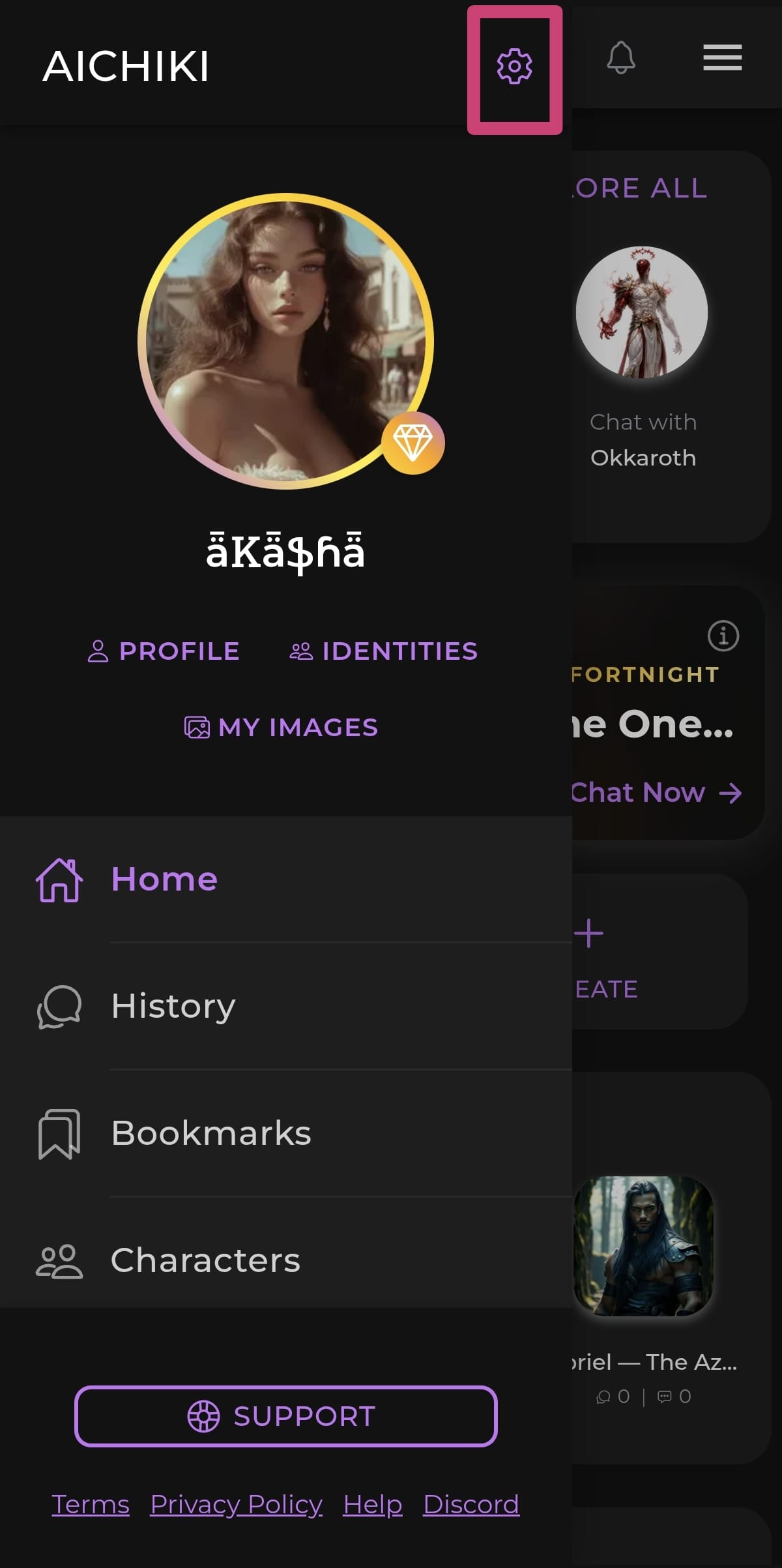
On Desktop: Click your profile picture in the top-right corner of the page, then click Settings.
Your Account
At the top of the page you'll find your account details.
- Profile picture — Tap the pencil icon to change your avatar. Your avatar frame is set through Profile Themes (https://help.aichiki.ai/identities/profile-themes.html)
- Email — The address linked to your account. Tap Sign Out here to log out.
- Two-Factor Authentication — Adds an extra layer of security to your account. Tap the pencil to enable or disable it. It's disabled by default.
- Display Name — The name shown on your profile and characters. Tap the pencil to edit it.
- About Me — A short bio shown on your profile. Tap the pencil to edit it.
App Settings
These control how the whole app looks and works.
- Interface Language / Language — Choose your preferred language for the app interface and labels.
- Auto-translate character info — Automatically translates character info into your interface language. On by default.
- Font Size — Adjust text size across the entire app. Choose Small, Normal, or Large.
- Theme Mode — Choose between System (follows your device), Light, or Dark.
- Clean Unicode Characters — Removes Unicode from character descriptions and names. Auto-translate also cleans these automatically.
Chat Settings
These apply to your conversations.
- Content Language — Choose your preferred language for chat interactions.
- Keep last message — When you delete a character's last message, your own message is kept as the last one instead of auto-generating a new reply. Off by default.
- Emojis in chat — The default for new chats. When set to No, the AI avoids using emojis in its replies. You can still toggle this per conversation.
Creation
- Character Creation Mode — Sets how you create new characters. Choose Form, Chat, or Ask.
- Form — Always opens the full control form when creating a new character.
- Chat — Creates your character through a conversation with Aichiki's help. It asks you a few questions, gives you options to choose from, then builds the character for you. You review it, and once you're happy, you save it.
- Ask — Every time you open the character creator, the app asks which mode you'd like to use.
Notification Preferences
This is where you turn notifications on or off and choose which channels reach you. It's covered in full on its own page: https://help.aichiki.ai/ . In short, you have Push notifications and Email notifications as master toggles, plus five channels you can switch individually: Support & Tickets, General, Aichiki Messages, Character Notifications, and Character Messages. Use Manage in System Settings to adjust permissions at the device level.
Account Tools
At the bottom of the page you'll find quick links:
- Identities — Manage your user identities (the personas you chat as).
- Contact Us — Reach the AICHIKI team.
- Referrals — Find and share your referral code.
- Manage Subscription — View or change your Plus / Premium plan.
- Restore Purchases — Recover a subscription on a new device or after reinstalling.
- Reset Password — Send yourself a password reset.
- Export Data — Download a copy of your data.
- Account Standing — Check your current standing tier. Full details: https://help.aichiki.ai/privacy/account-standing.html
Permanent Actions
The option below cannot be undone. Use it carefully.
- Delete Account — Permanently deletes your account and everything associated with it within seven days. Full details: https://help.aichiki.ai/privacy/how-to-delete-your-account.html
- .