Connecting Your AICHIKI Account to Discord
The AICHIKI Discord server is private and only for people who use the AICHIKI app. To take part in the server, your Discord account needs to be connected to your AICHIKI app account.
Until your accounts are connected, you will only see the welcome channel. Once they are connected, the rest of the server opens for you.
Before You Start
- Update the AICHIKI app to the latest version. The connection code is only shown in newer versions.
- Be logged in to the Discord account you want to use.
- The whole process takes about a minute.
Part 1: If You Are Already in the Server
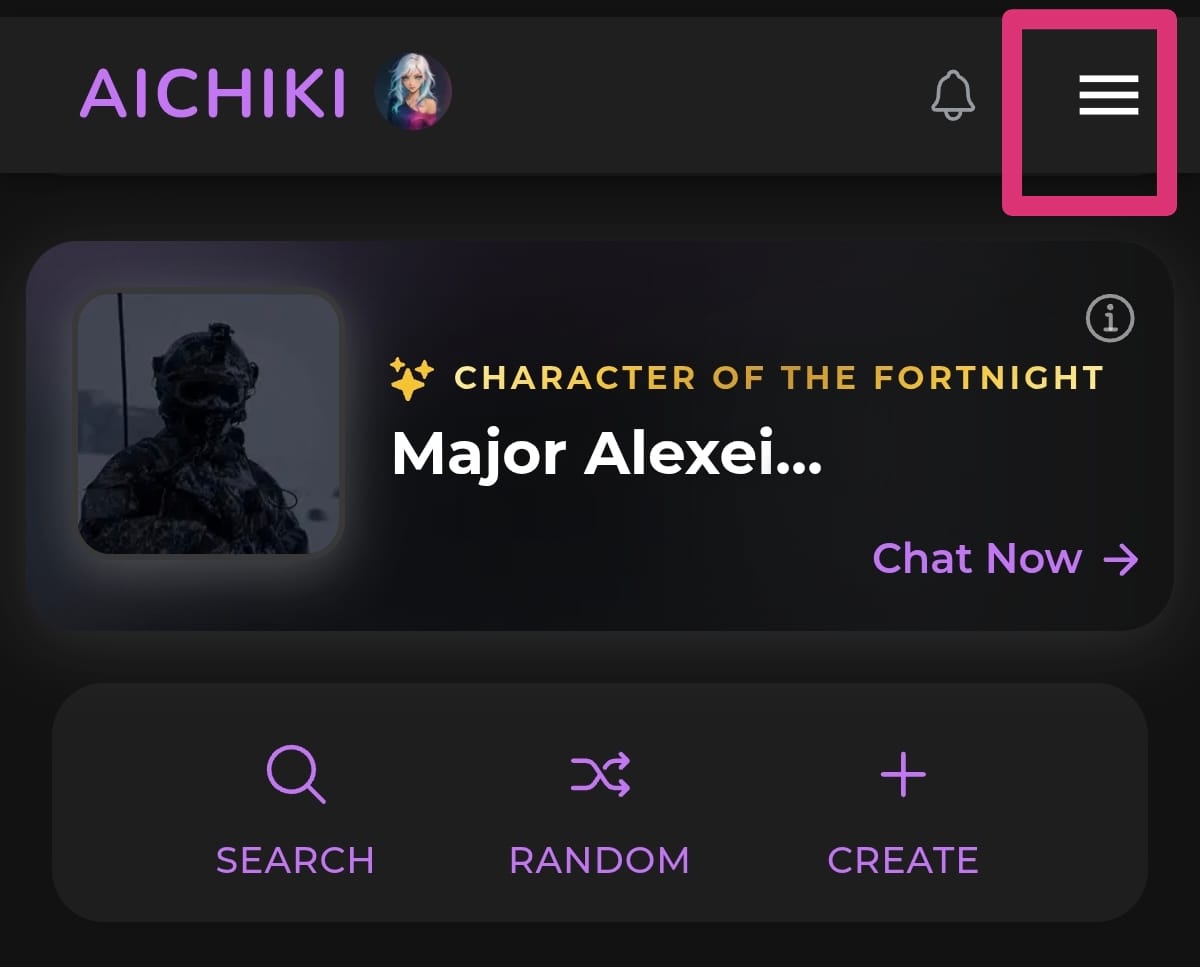
Step 1 — Open the menu in the app
Open the AICHIKI app and tap the menu icon in the top right corner.
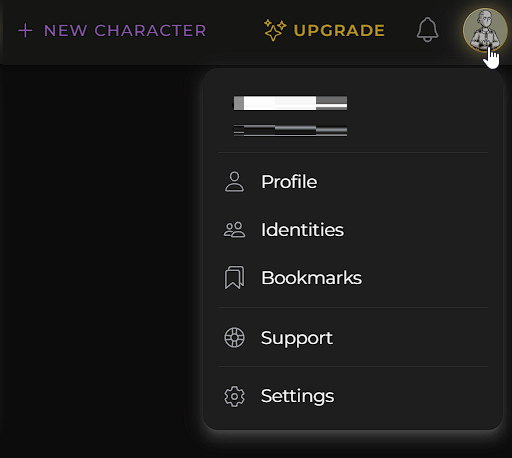
On the web version: click your profile picture in the top right corner. If you have not set a picture, you will see a placeholder image there. A menu opens. Click Settings at the bottom of it, then continue from Step 3.
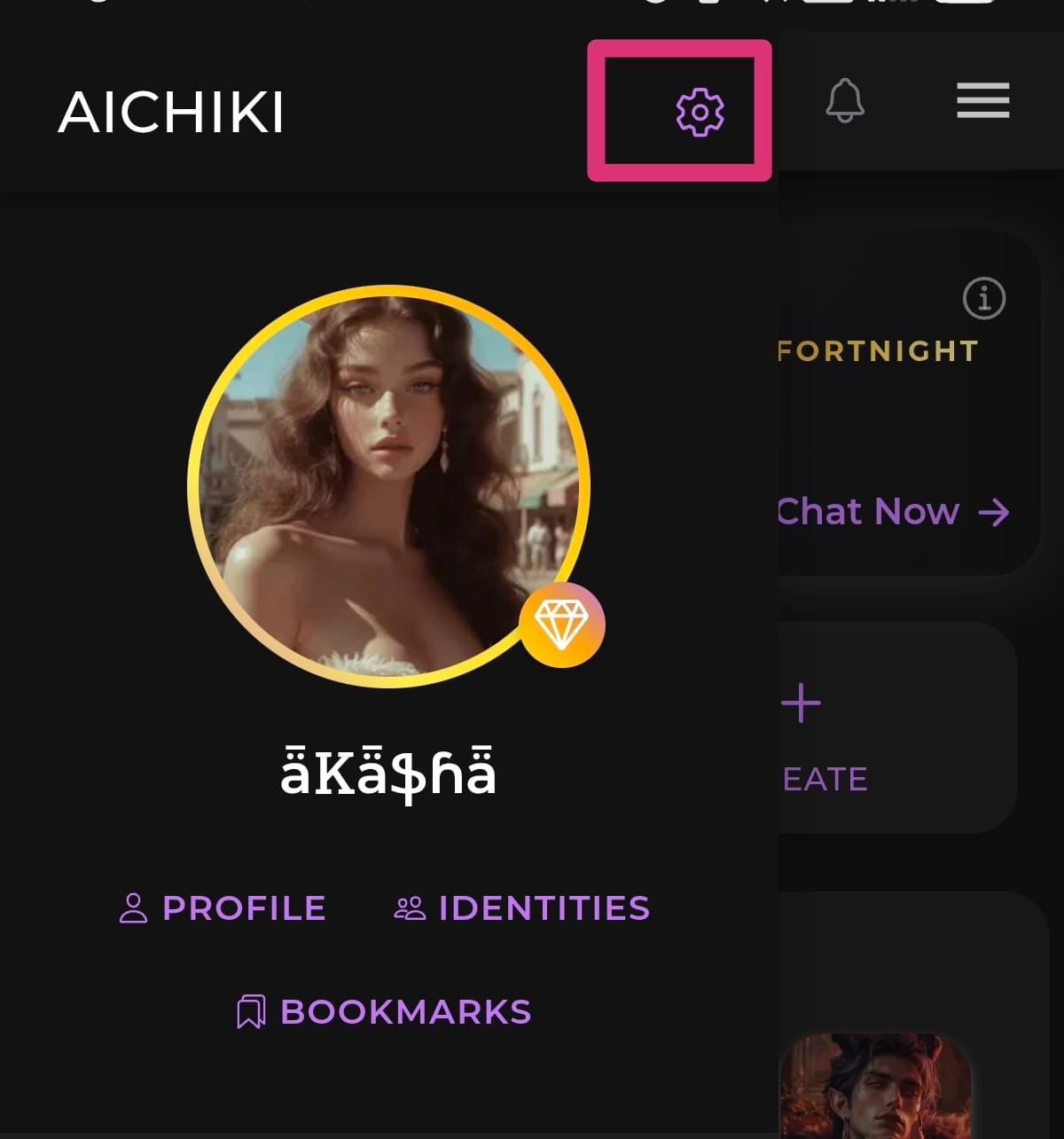
Step 2 — Open Settings
The side panel opens. Tap the gear icon at the top.
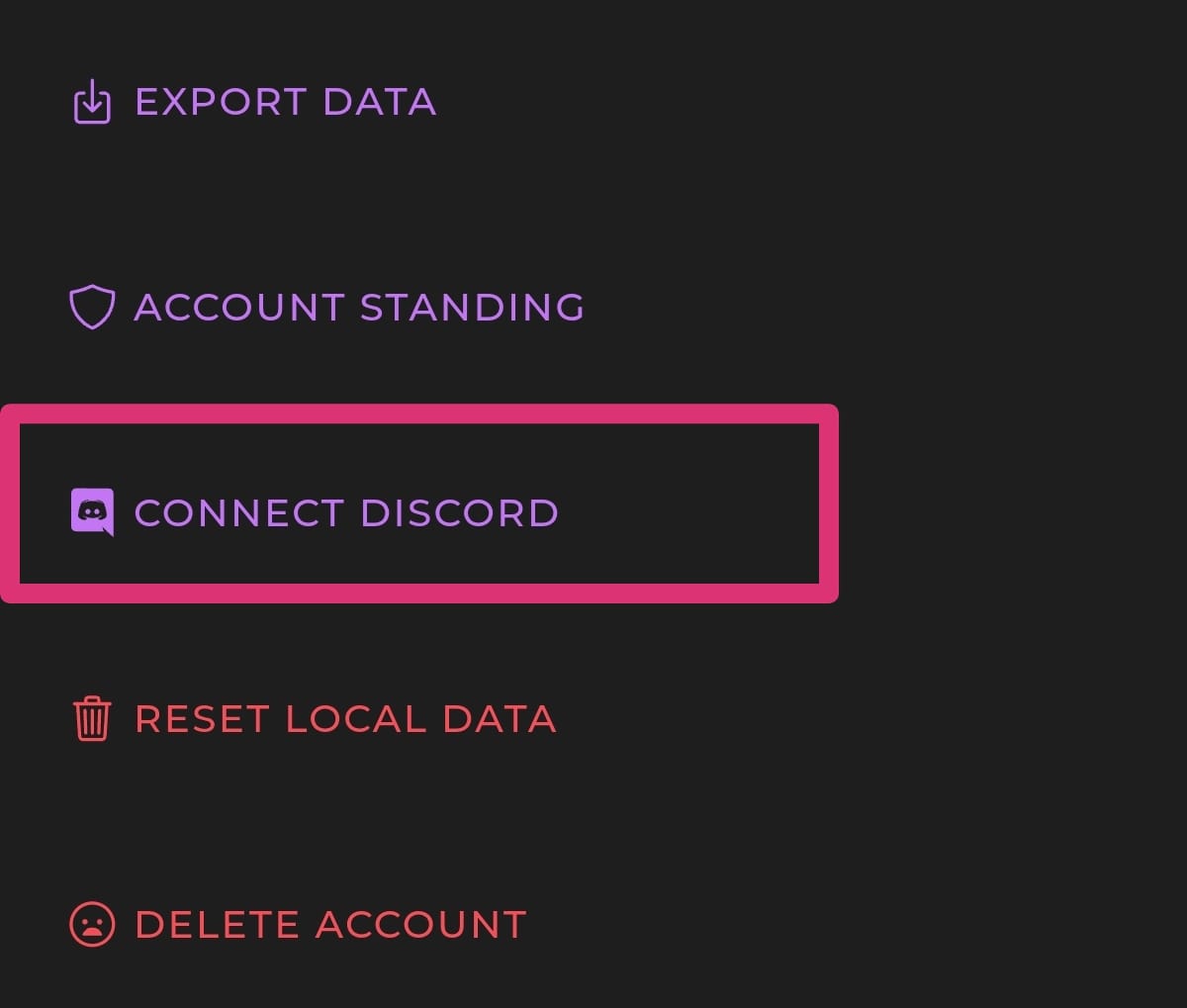
Step 3 — Tap Connect Discord
Scroll down the settings list until you find Connect Discord, between Account Standing and Reset Local Data. Tap it.
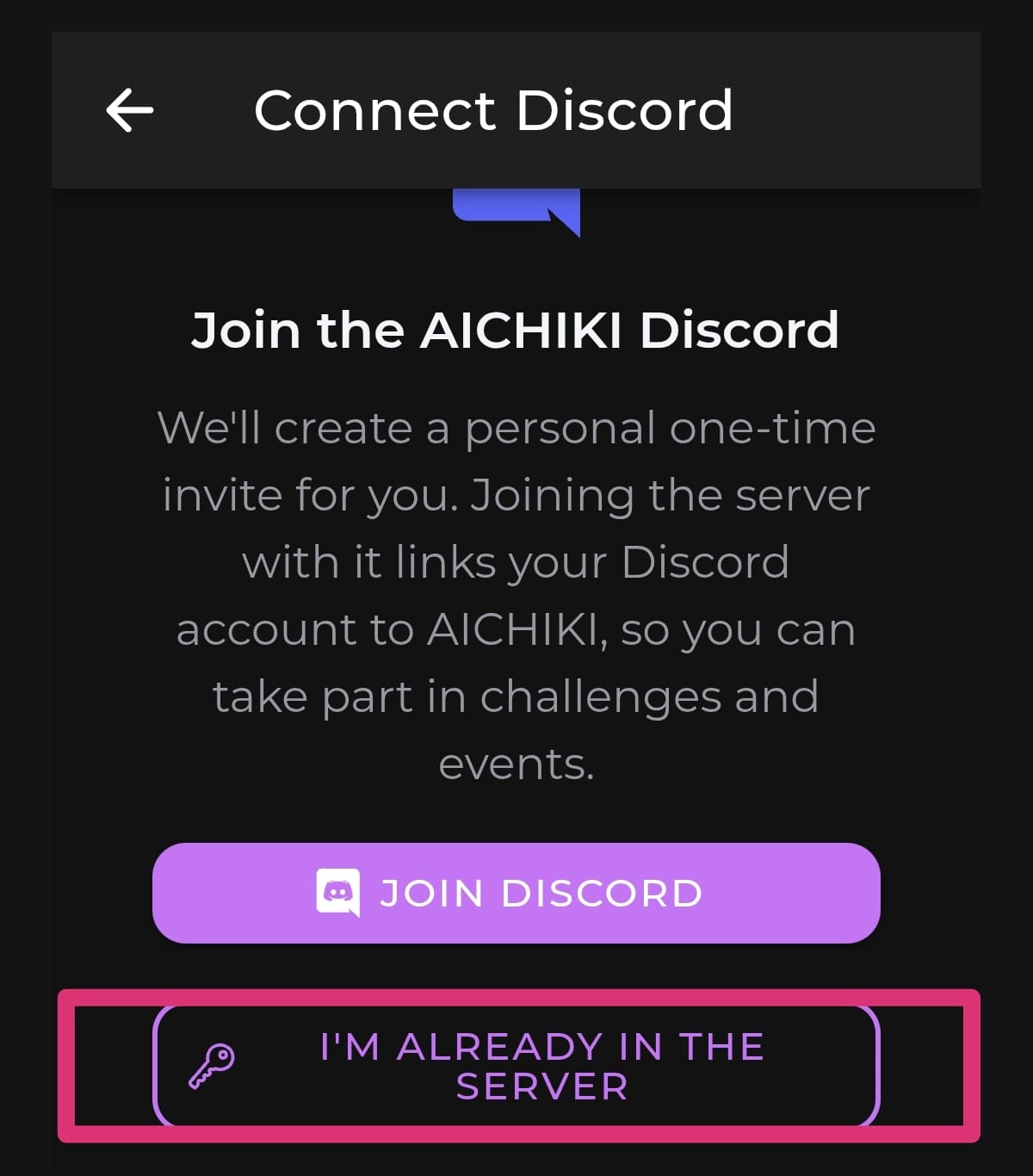
Step 4 — Choose "I'm already in the server"
Two options are shown. Since you are already a member of the AICHIKI Discord server, tap I'M ALREADY IN THE SERVER.
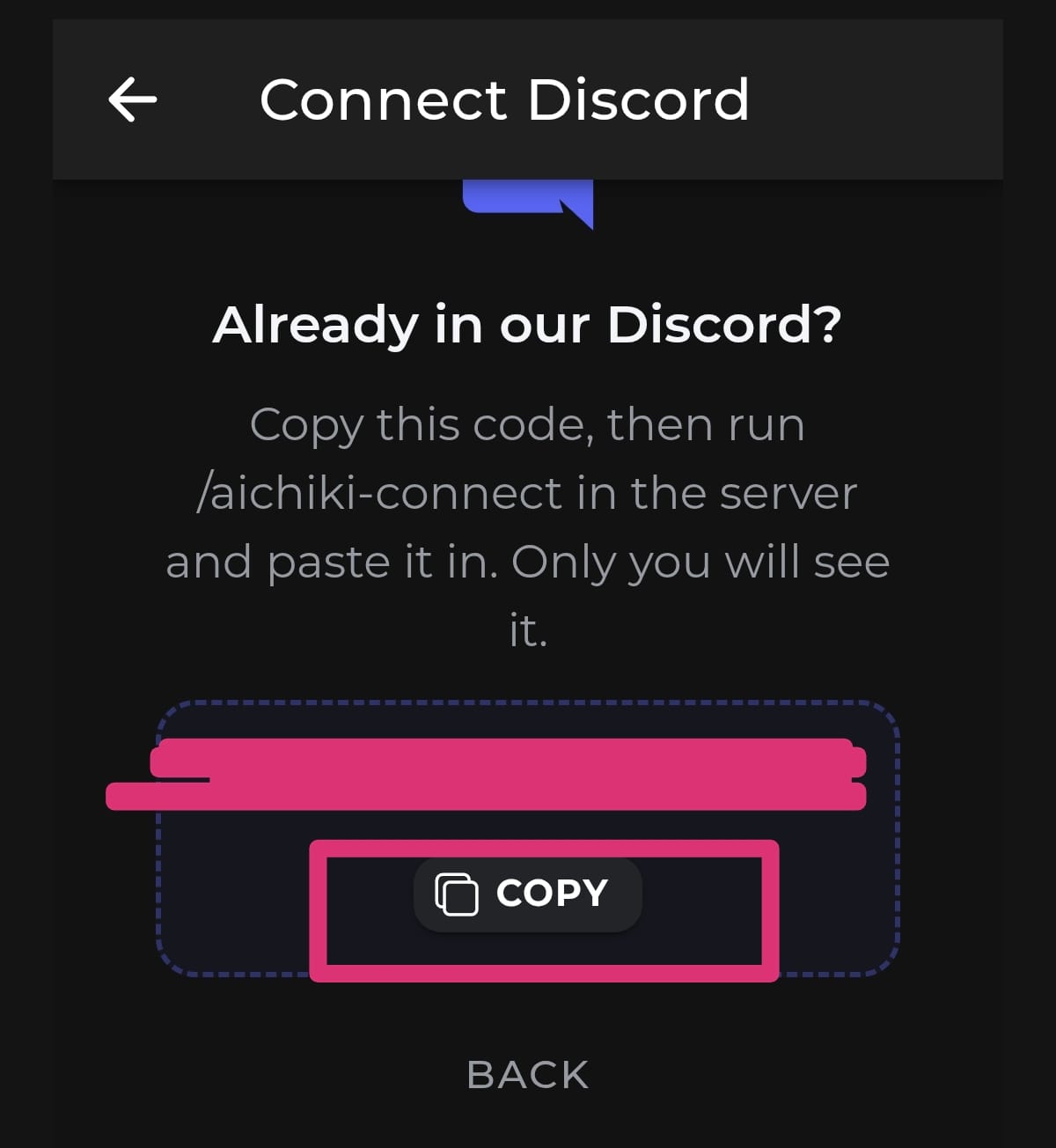
Step 5 — Copy your code
Your personal connection code is displayed. Tap COPY.
Only you can see this code. Do not share it with anyone. The code expires after a while, so use it now rather than saving it for later. It will regenerate after a while.
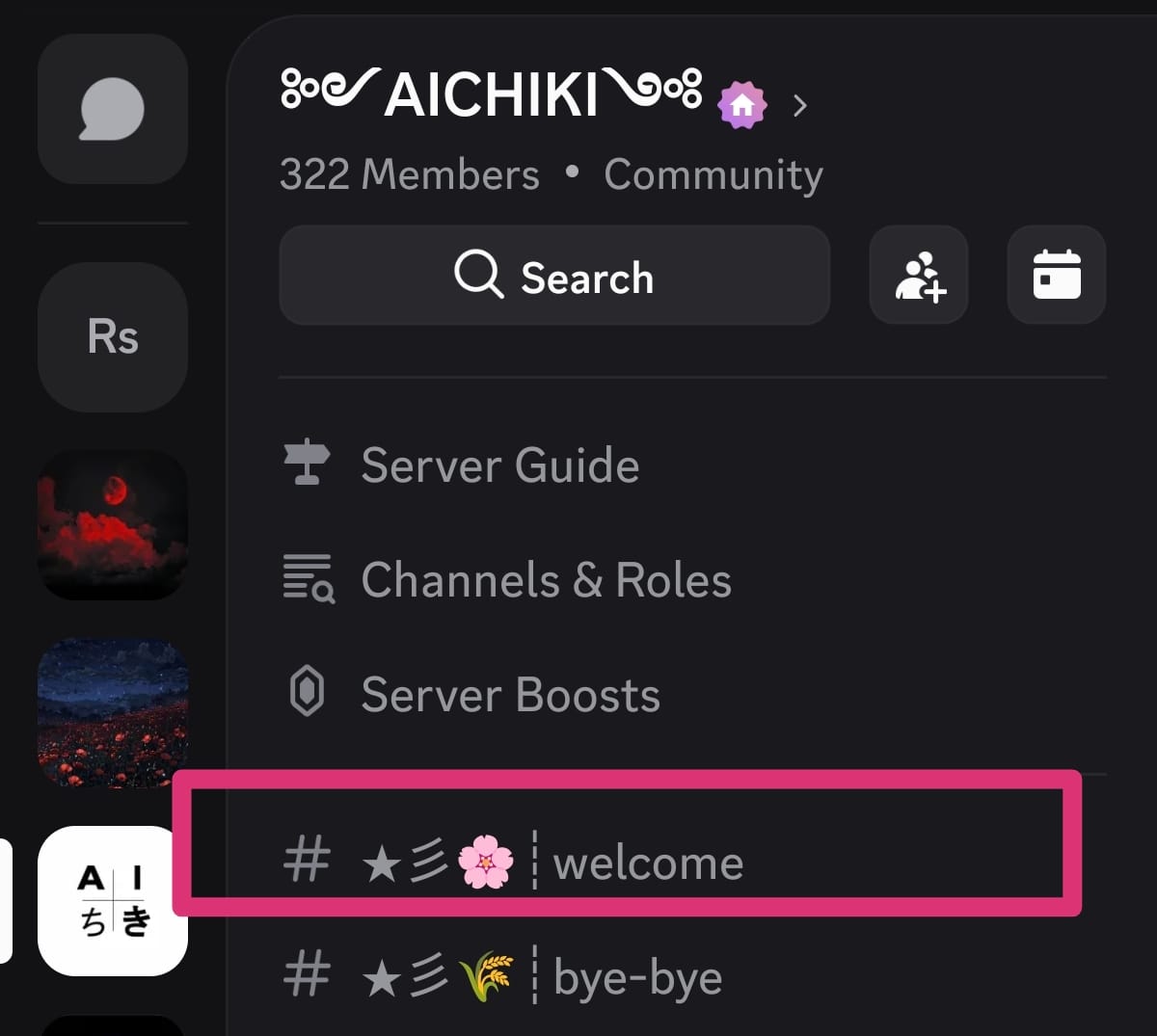
Step 6 — Go to the welcome channel in Discord
Open Discord, go to the AICHIKI server and open the welcome channel.
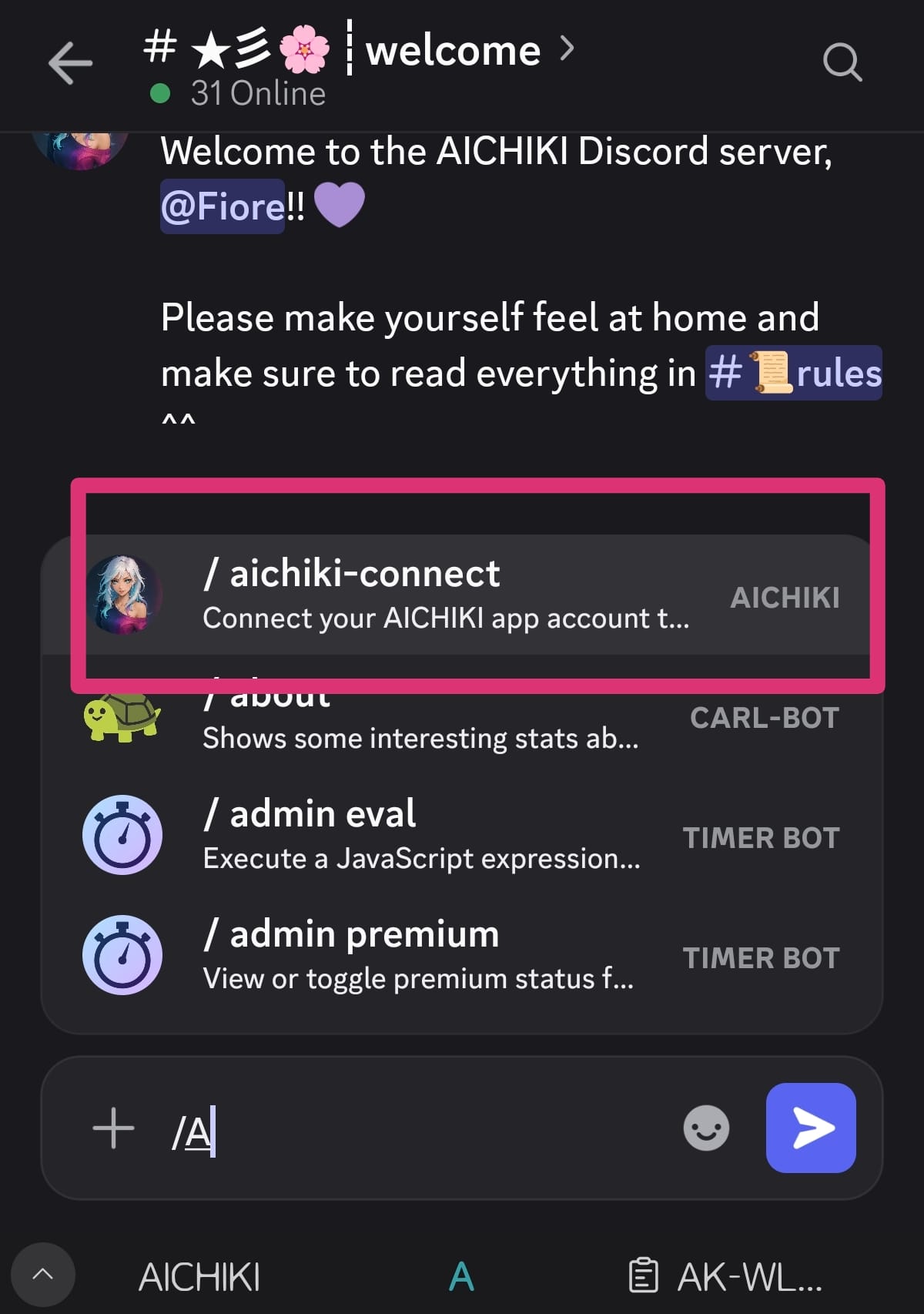
Step 7 — Start the command
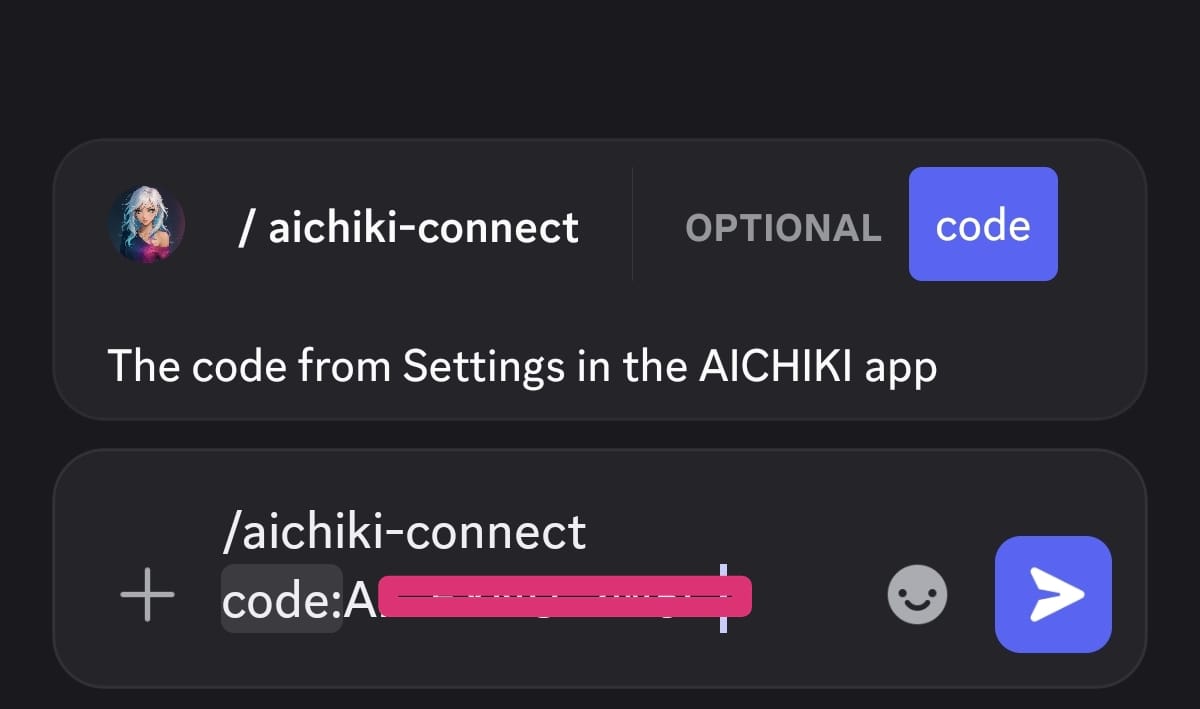
Tap the message box and type /aichiki-connect. The command appears in the list above the message box. Tap it to select it.
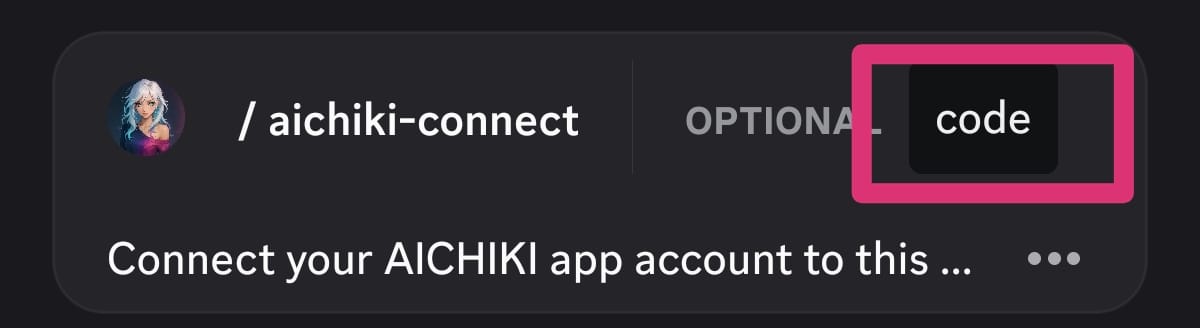
Step 8 — Open the code field
Tap code on the command line. This is where your code goes.
Step 9 — Paste your code and send
Paste the code you copied in Step 5 into the code field, then send the message.
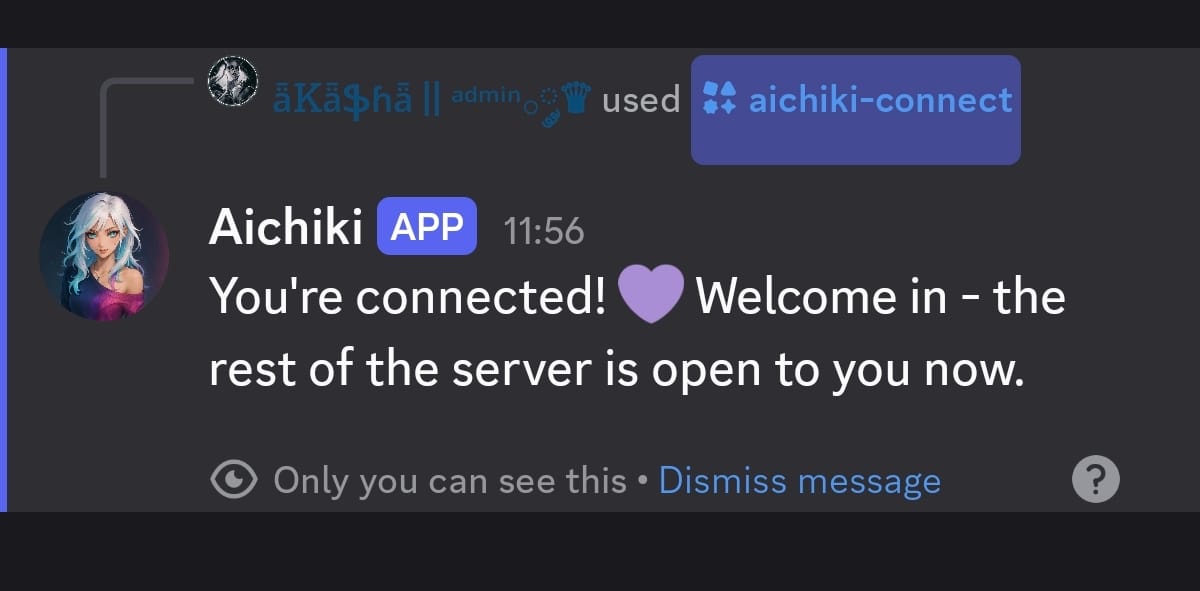
Step 10 — Done
Aichiki replies to confirm that your accounts are connected, and the rest of the server becomes visible to you. Only you can see this reply.
Part 2: If You Are Not in the Server Yet
If you are not a member of the server, open Connect Discord in the app settings (Steps 1 to 3 above) and tap JOIN DISCORD. A personal one-time invite is created for you.
- Tap JOIN DISCORD. You are taken to Discord.
- Discord asks whether you want to join the AICHIKI server. Accept.
- Aichiki welcomes you and confirms that your accounts are connected, and the rest of the server becomes visible to you.
Questions and Answers
Why do I have to connect my accounts? The server is the official AICHIKI server, and it is private. It exists for app users, so there is no reason for anyone else to be in it. Connecting is how we confirm that a member is an app user.
It also matters for moderation. How a person behaves in the app and how they behave in the server are both taken into account, and connected accounts let the moderation team see the full picture instead of half of it. Together with disabled invites, this keeps raids and random accounts out and makes both the app and the server safer.
What happens if I don't connect? Your app account is not affected in any way and continues to work as normal. In the Discord server you will only see the welcome channel until your accounts are connected.
What does connecting give me access to? The full server: all channels, events, challenges, giveaways, character sharing and the help channels. You also receive your roles.
Can other members see my app account? No. The connection is private. Other members cannot see who you are in the app, the only thing they will see is the role you have received after connecting your accounts.
Does the server see my characters or my chats? No. Your profile, your characters and your conversations stay in the app. Nothing from them is shared in the Discord server.
Is my code private? Yes. The code is shown only to you in the app, and Aichiki's reply in Discord is visible only to you. Do not post your code in a channel and do not send it to anyone.
My code stopped working. Codes expire. Open the app again, go to Settings, then Connect Discord, then "I'm already in the server", and a new code is generated for you. Copy that one and use it straight away.
The code was rejected. Copy the code from the app rather than typing it by hand, and make sure the whole code is pasted with no spaces before or after it. If it is a code you copied earlier, get a fresh one. If it still does not work, ask in the welcome channel and a moderator will help you.
The /aichiki-connect command doesn't show up when I type it. Check that you are in the AICHIKI server and in the welcome channel. If it still does not appear, close Discord completely, reopen it and try again. Also make sure you are typing the command not pasting it or it won't work. Pasting the code is completely fine.
Do I have to do this more than once? Normally no. The connection is broken if you reinstall the app, or if you leave the server and rejoin it. In those cases, the connection happens automatically when you join our discord.
Can I invite a friend to the server? No. Invites are disabled, so nobody can be invited in. Anyone who wants to join has to be an AICHIKI app user and join through the personal invite generated in the app.