Chat history
Your History is where all your conversations live. Every chat you start is saved here automatically, so you can pick any of them back up at any time. You can sort your chats, filter them by character, give them custom names, and jump straight back into chatting.
How do I open my History?
There are a couple of ways to reach it.
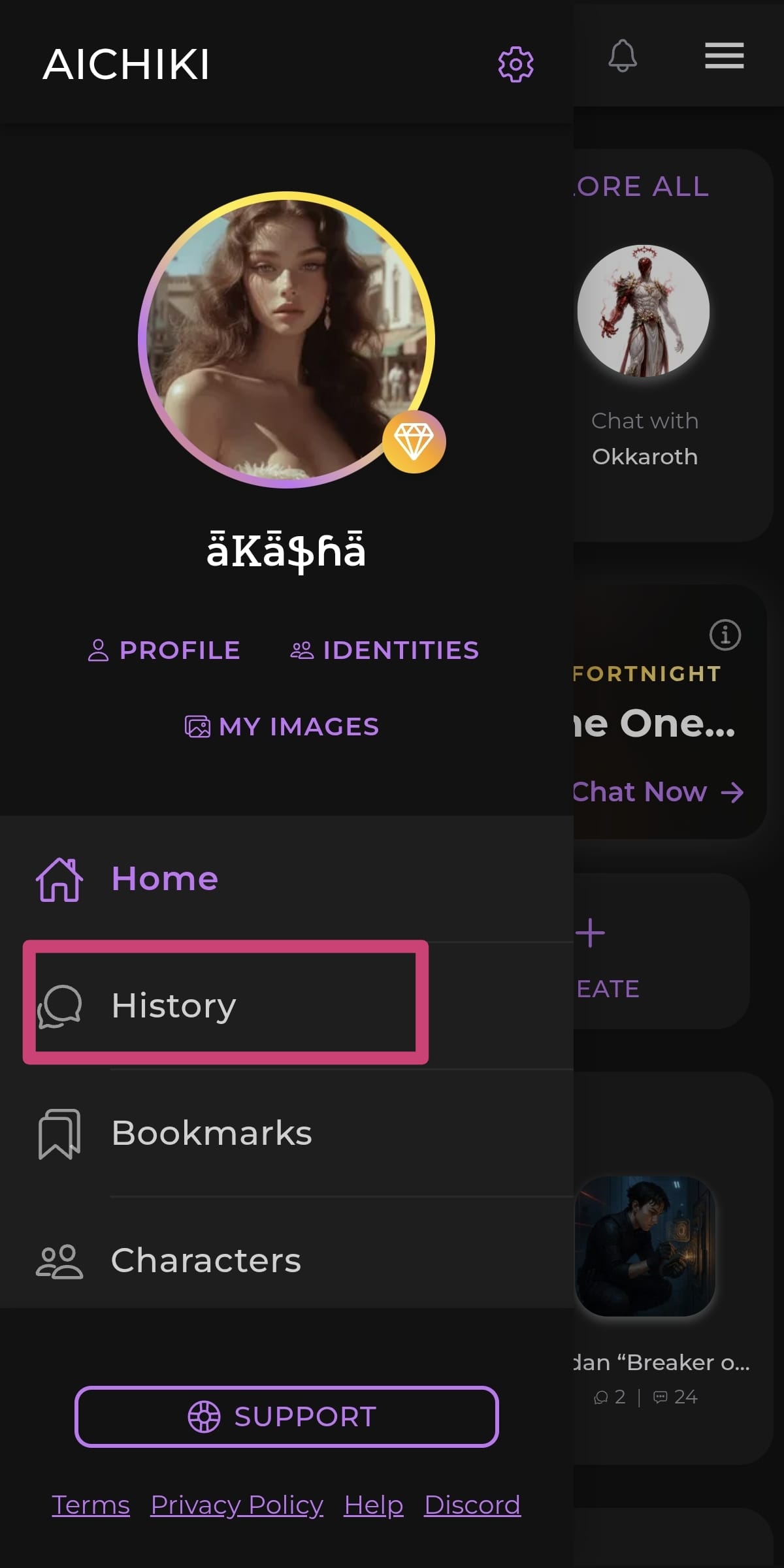
See all your chats: open the menu in the top right corner of the home screen, then tap History. This shows every conversation you have, across all characters.
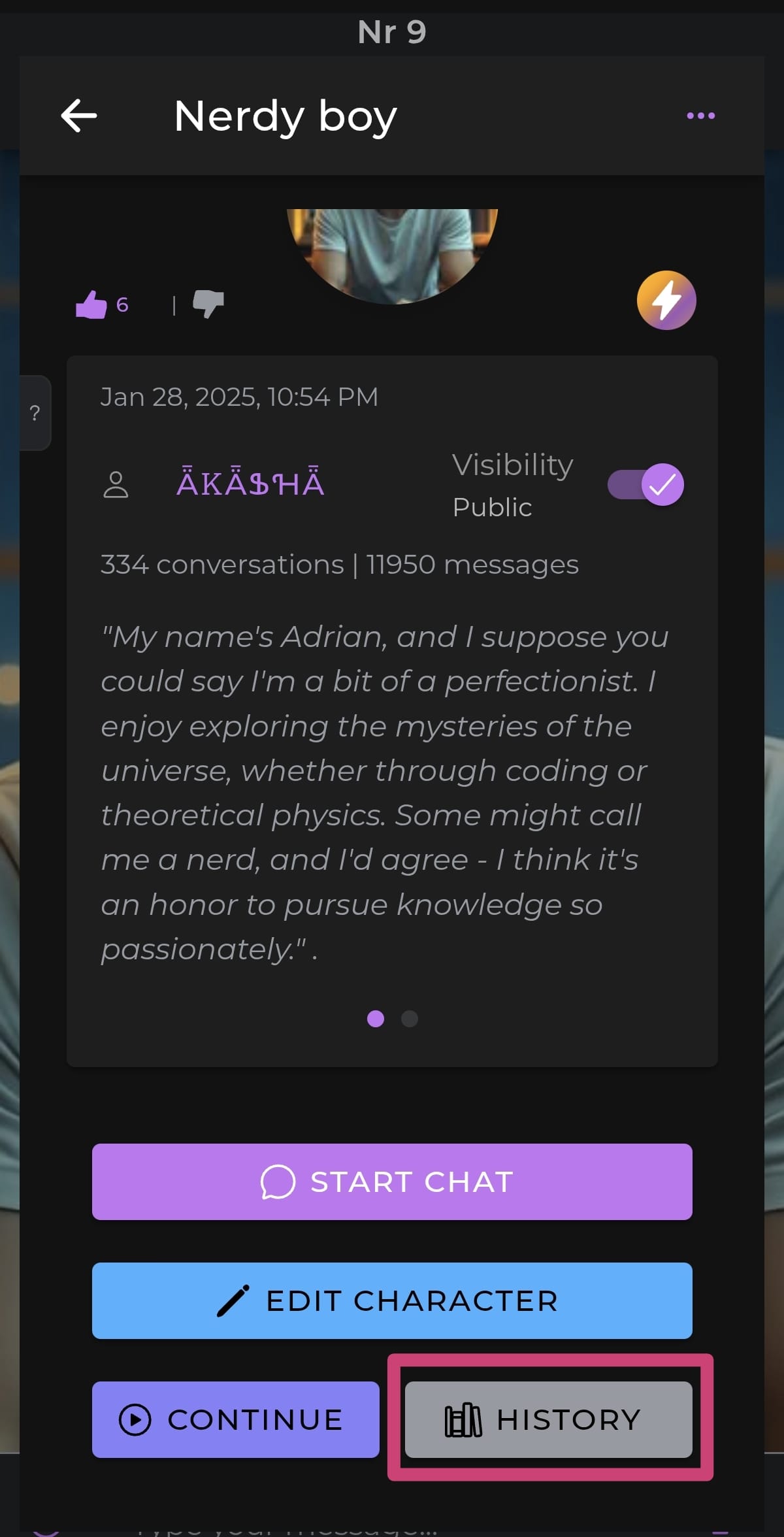
See your chats with one character: open that character's page and tap the History button. This shows only your conversations with that character. You can reach a character's page two ways:
- While in a chat, tap the character's name at the top of the screen.
- Find the character through Search or Explore and open their page.
The History button sits near the bottom of the character's page, so you may need to scroll down to see it.
TIP
If History looks empty for a moment when it opens, give it a few seconds. It takes a little time to load everything in, especially if you have a lot of chats.
What does each chat show?
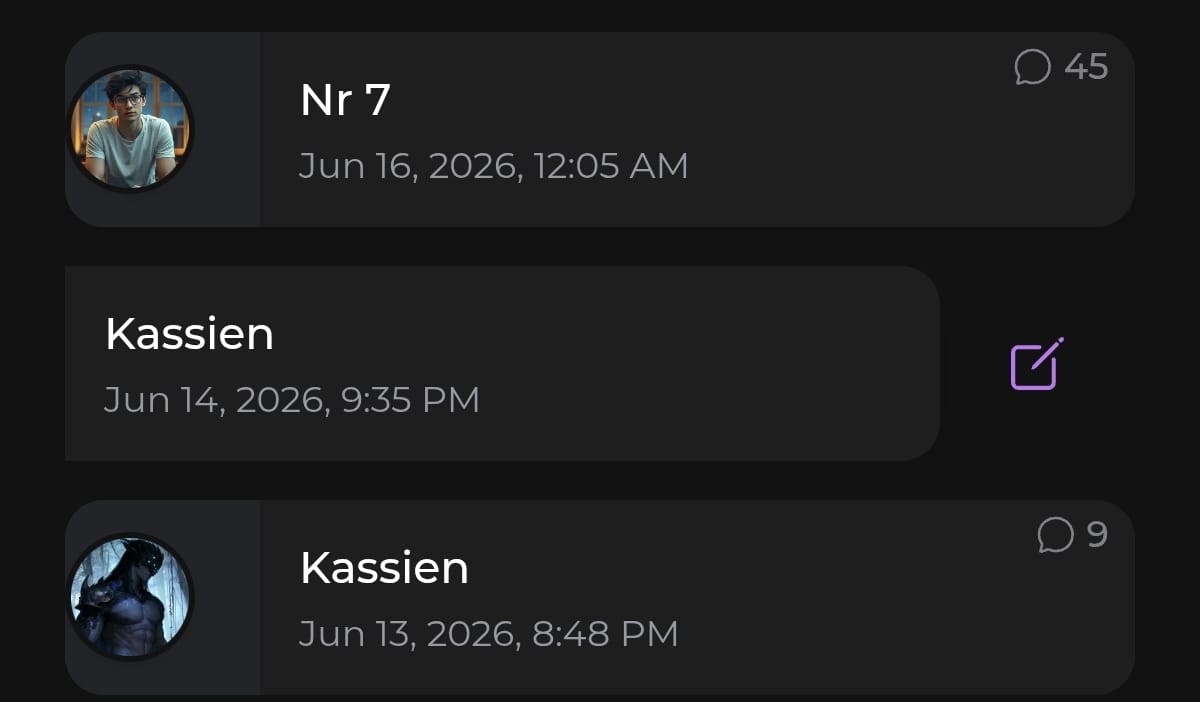
Every conversation in the list shows the character's picture, the chat's name, the date and time of your last activity, and the number of messages in that chat.
The name is either the custom name you gave the chat or, if you have not named it, the character's name. Naming your chats is what makes a long History easy to scan, especially when you have several conversations with the same character.
How do I sort my chats?
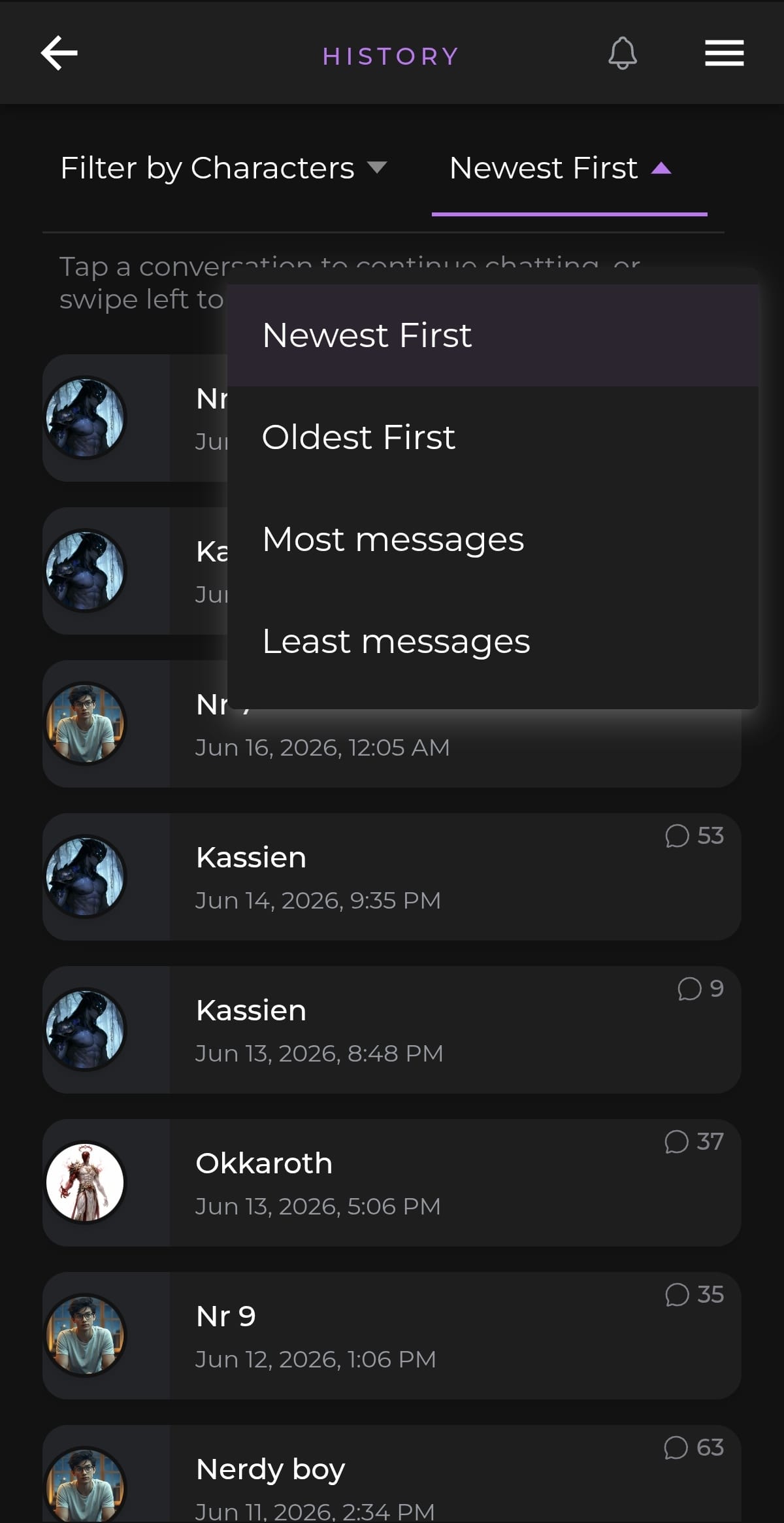
Tap the sort dropdown (it shows Newest First by default) to choose how your chats are ordered:
- Newest First — most recent activity at the top
- Oldest First — oldest activity at the top
- Most messages — longest conversations first
- Least messages — shortest conversations first
How do I filter by character?
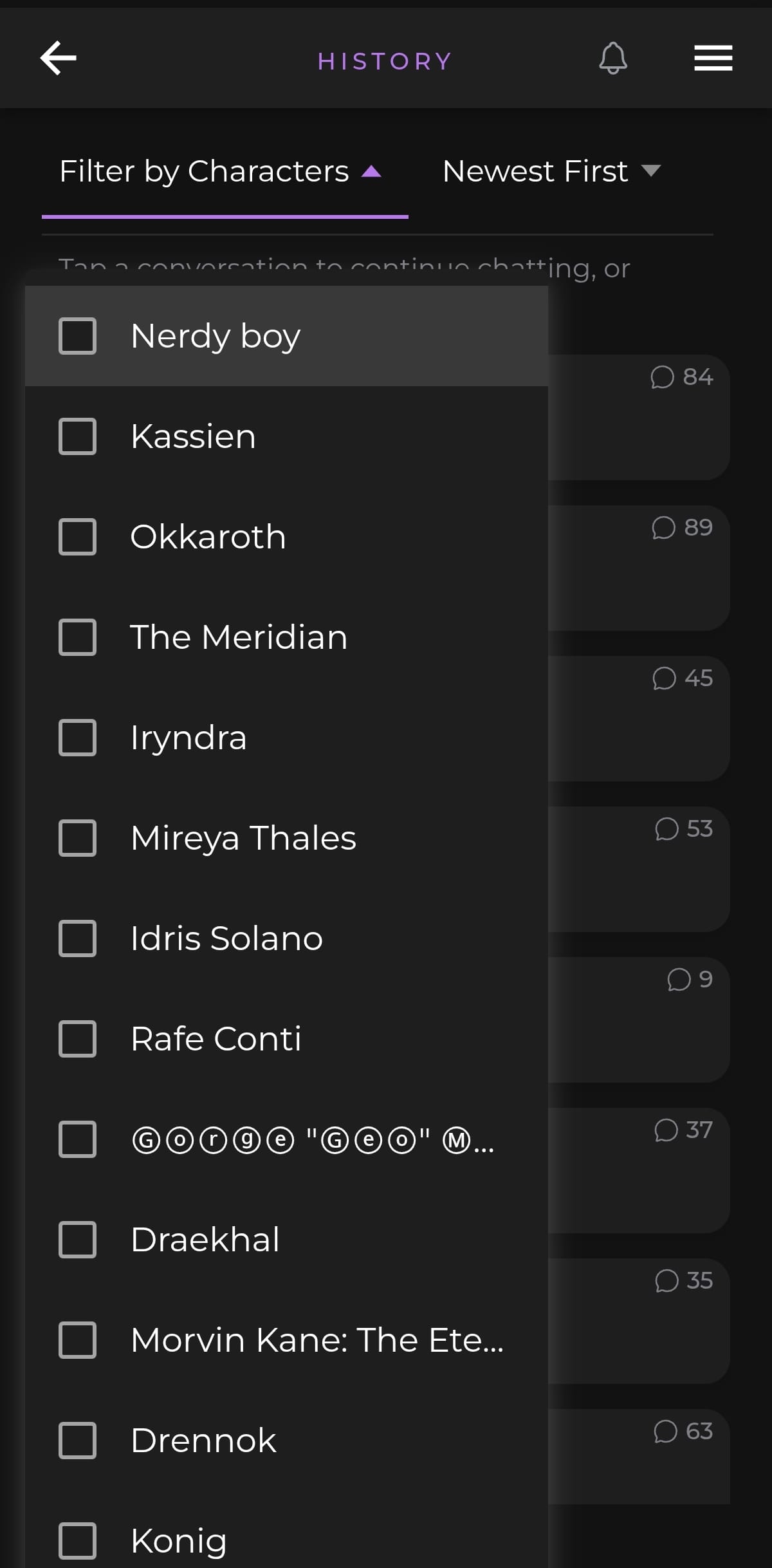
Tap Filter by Characters to open a list of every character you have chatted with, each with a checkbox. Tick one character to see only your chats with them, or tick several to see chats with any of the selected characters at once. This filter appears when you open History from the menu. When you open History from a character's page, the list is already limited to that character, so the filter is not shown.
How do I name or rename a chat from History?
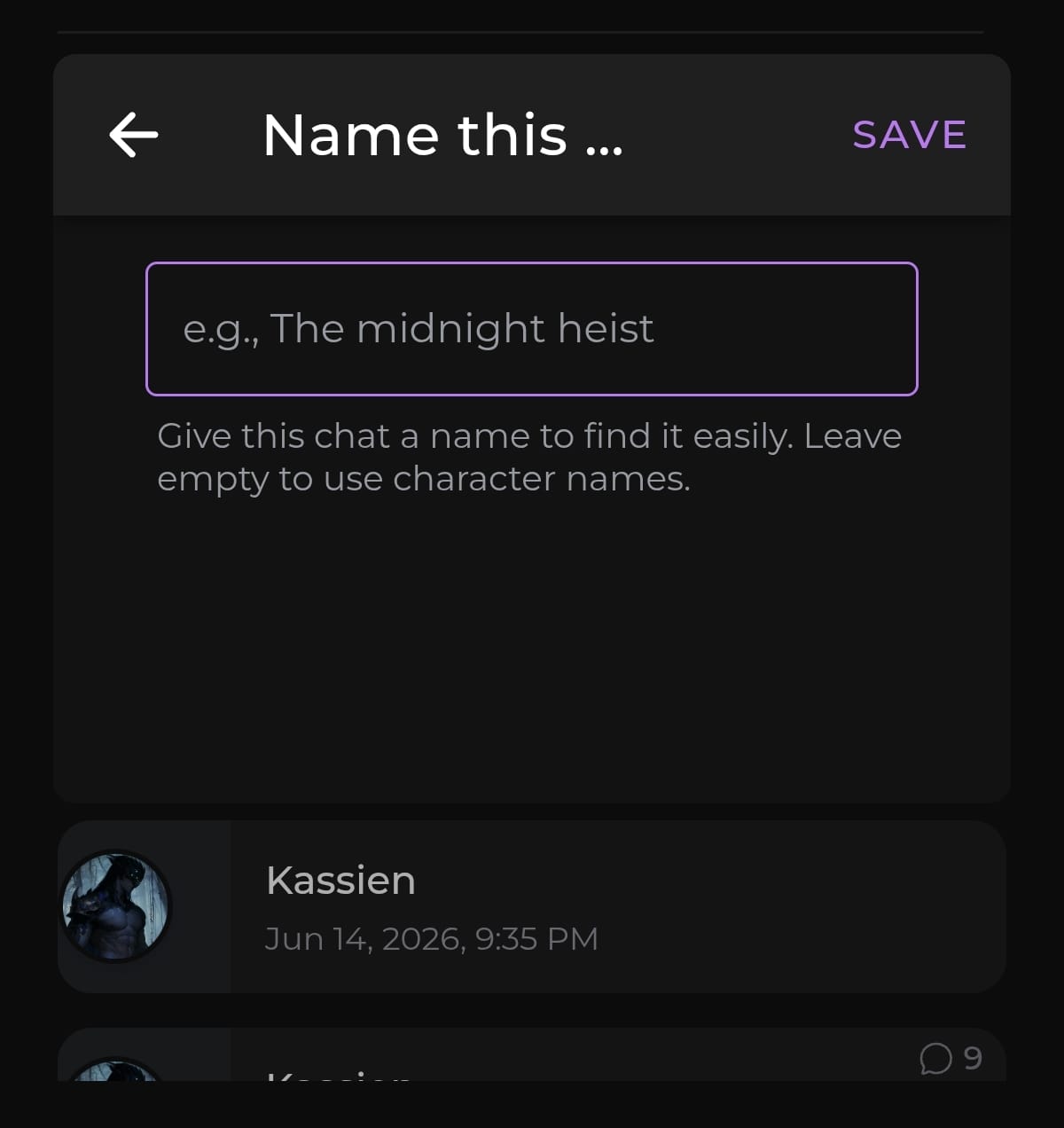
Swipe a conversation left to reveal an edit button, then tap it. A panel opens where you can type a name and tap Save. The chat then shows that name in your History.
To rename it later, swipe left and edit it again. Leave the field empty to go back to using the character's name. You can also name a chat from inside the conversation itself using the Name this chat option in the chat menu.
How do I continue a conversation?
Tap any conversation in the list to open it and keep chatting right where you left off.
Still Need Help?
If your History is not loading or a chat is missing, feel free to contact our support team.