The Christmas Room
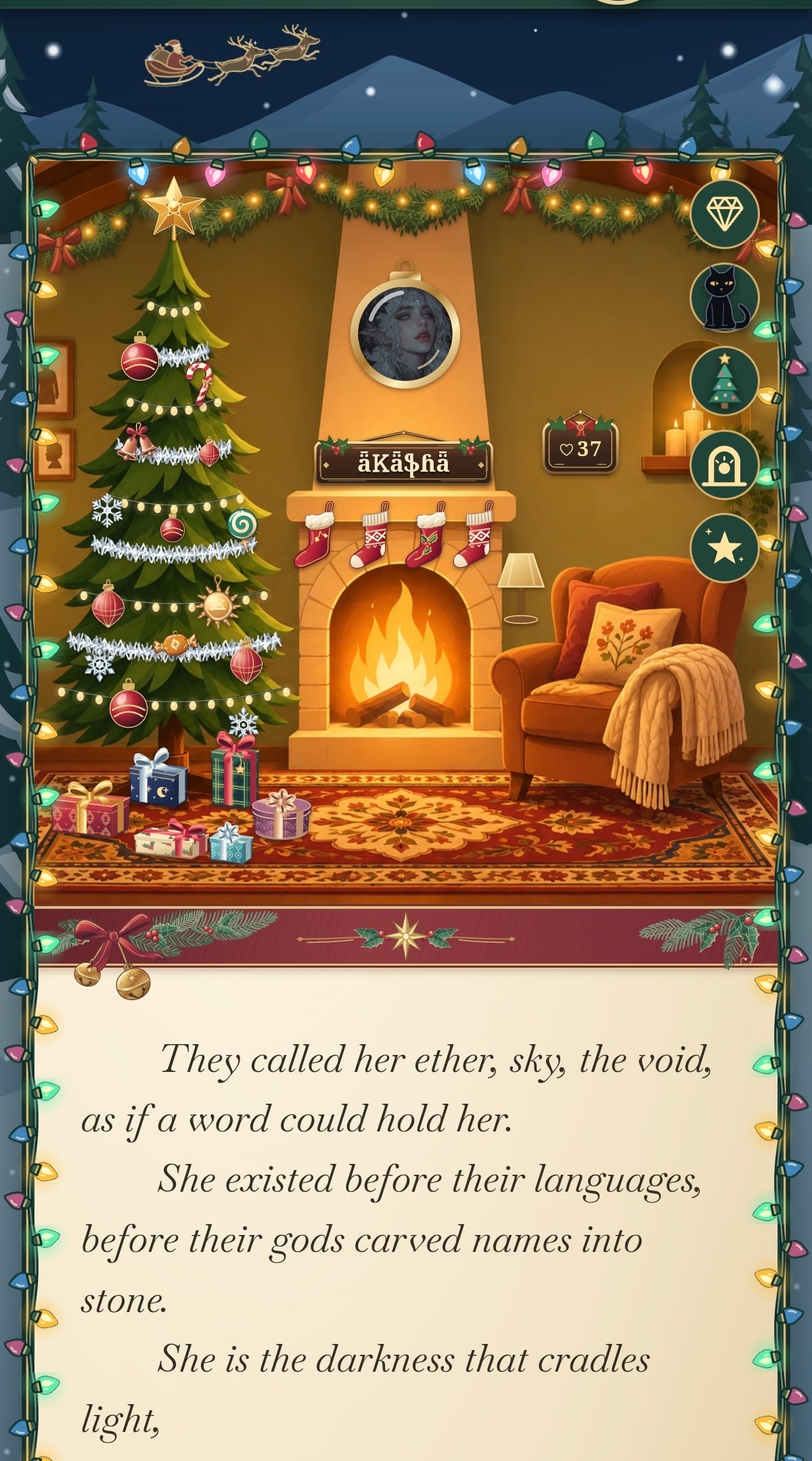
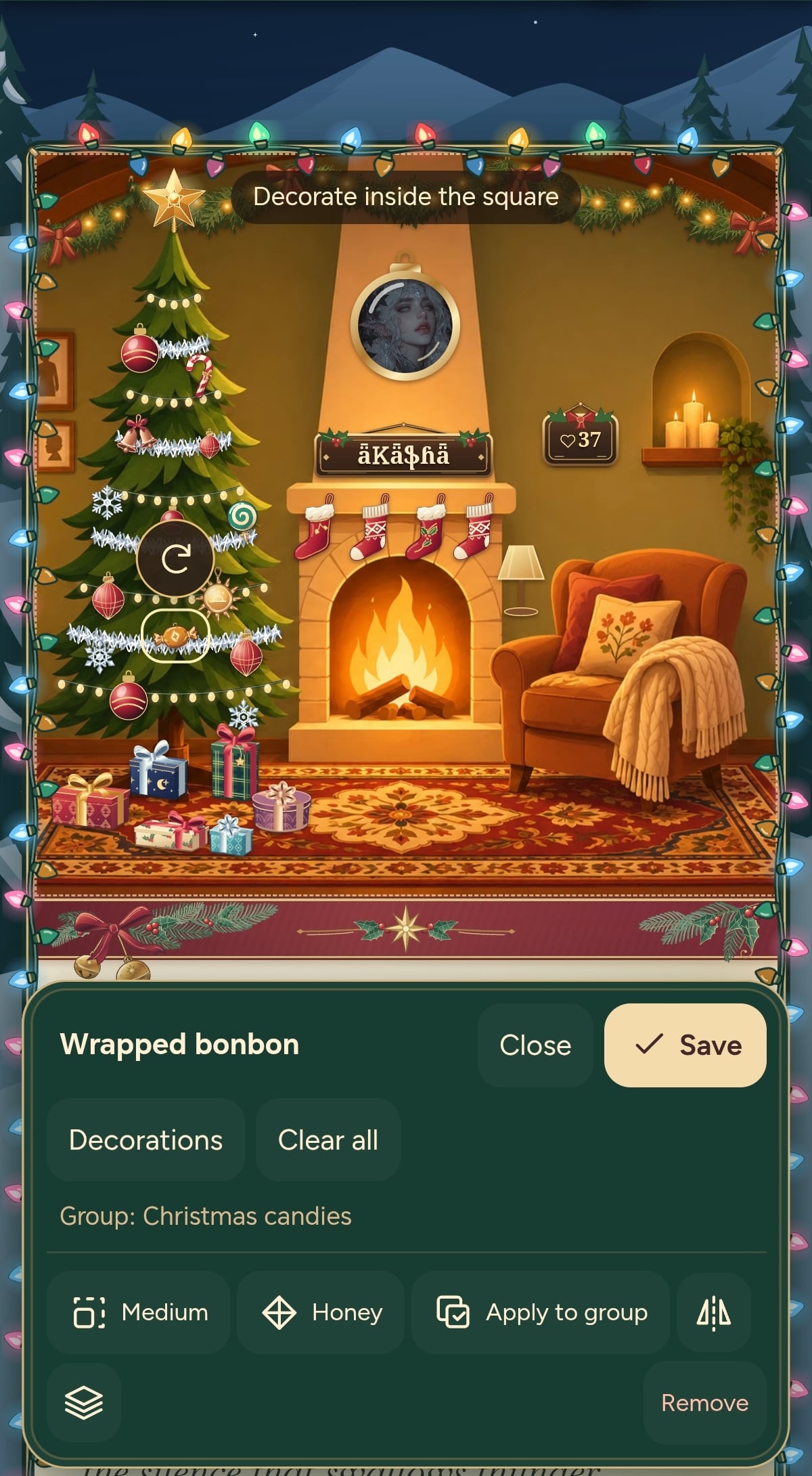
The Christmas Room is the profile theme you get when you join Christmas 26. It is a cosy room with a fireplace, an armchair, a Christmas tree in the corner and snow behind the window. The ornaments you find in the advent calendar go into your collection, and you place them in the room wherever you like. The room and your ornaments stay yours after the event.
What is in the room?
Some things are always in the room:
- The snow globe with your profile picture
- Your name on a small plaque
- Your number of fans on a second plaque
You can move these three, but you cannot remove them.
Everyone who visits your profile in the app sees your room.
How do I decorate it?
- Open your profile. Open the side bar menu and tap Profile, or tap Go to my profile on the Christmas 26 page.
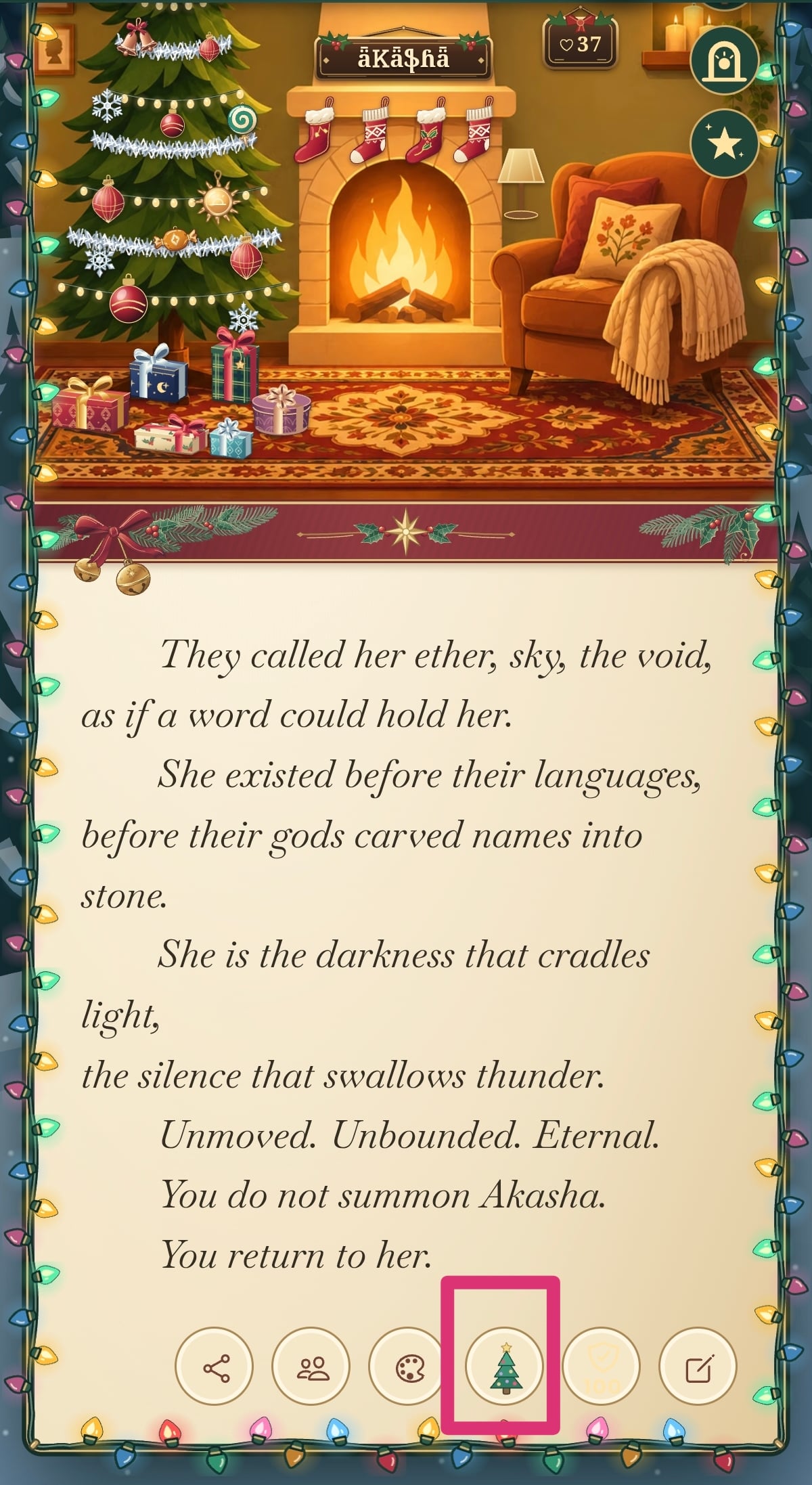
- Tap the Decorate button. It is the Christmas tree icon in the row of buttons under your bio. The editor opens at the bottom of the screen.
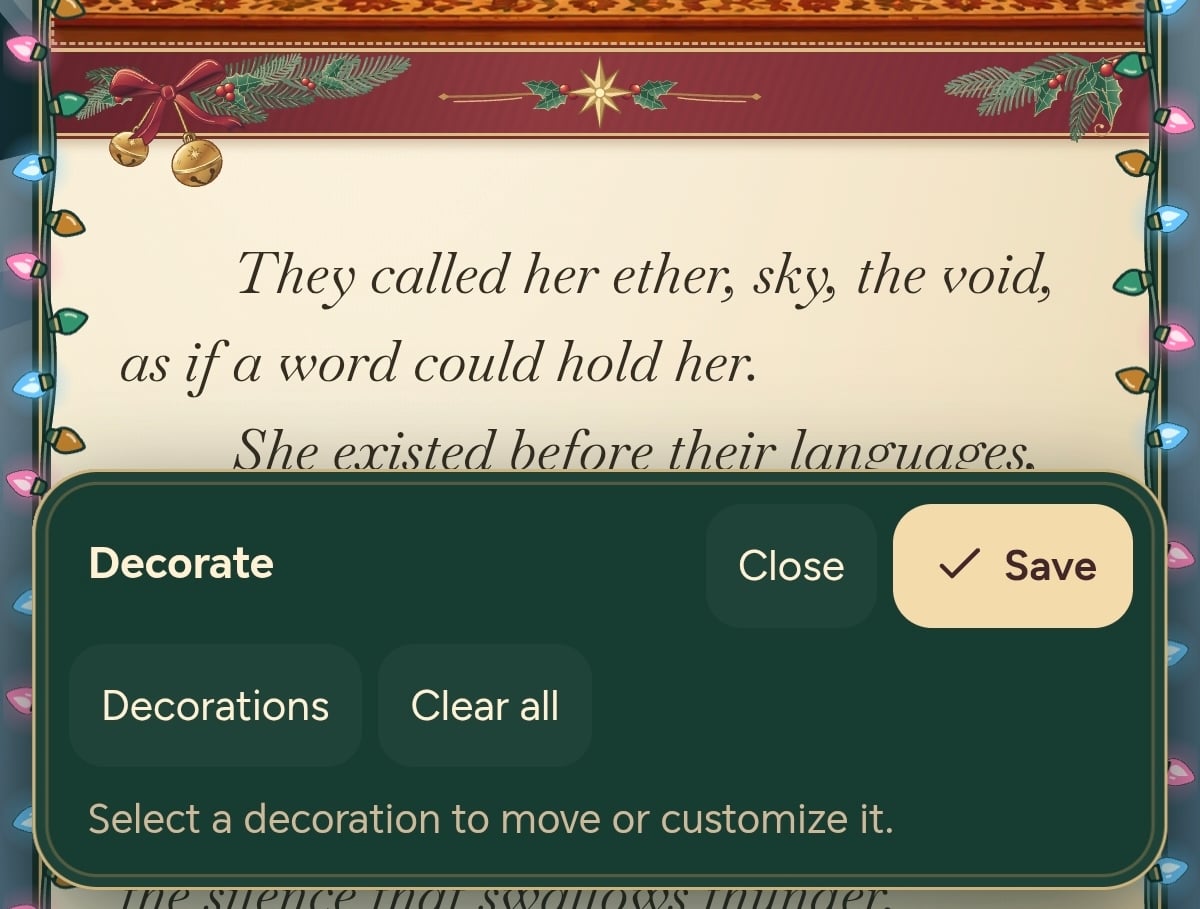
- Tap Decorations to open your collection. Every piece shows its name and how many you have available. Pieces you do not have yet are greyed out.
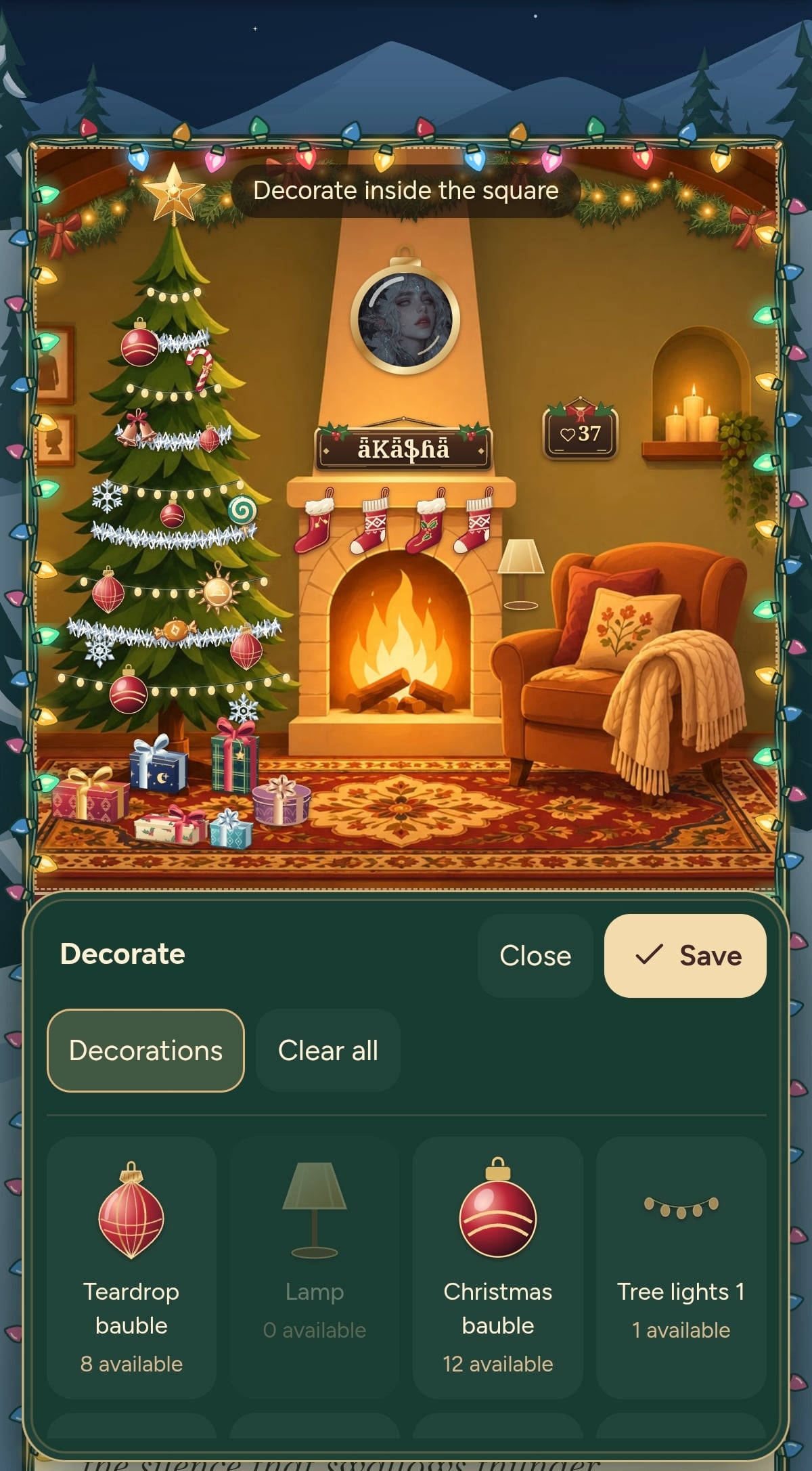
- Tap a piece to add it to the room, then drag it where you want it. Pieces go inside the square: on the tree, on the mantel, on the armchair, by the window or on the floor.
- Tap a placed piece to select it and change it (see below).
- Tap Save. Nobody sees your changes until you save. Close leaves the editor without saving, and any changes you have not saved are lost.
What can I change on a piece?
When you select a piece, the editor shows its name and its group, for example Tinsel 3 in the group Tinsel. Depending on the piece, you can:
- Move it: drag it to a new place.
- Rotate it: drag the round arrow above the piece.
- Change its size: tap the size button to switch between its sizes. The button shows the current size, for example Large or Full size.
- Flip it: tap the flip button to turn it to face the other way.
- Change its design: tap the design button, for example Silver, and choose another.
- Apply to group: some pieces belong to a group, like the tree lights or the tinsel. After you change one piece of a group, for example its design, tap Apply to group to give the whole group the same change.
- Put it in front of or behind other pieces: tap the layers button.
- Take it out of the room: tap Remove. The piece goes back to your collection.
Not every piece has every option. A row of lights or tinsel, for example, has one fixed size.
Clear all takes every piece out of the room and puts it back in your collection. You can undo it.
The pieces
| Piece | Good to know |
|---|---|
| Baubles | Round and teardrop baubles, in several colours |
| Tree lights | Five rows, each from a different advent calendar window. They light up only when all five rows are in your room. Four designs: warm gold, multicolour, icy blue and gold stars |
| Tinsel | Four rows |
| Garland | Five sections for the beam |
| Stockings | Four, for the mantel |
| Bells, sweets, silver snowflakes, wrapped gifts | These come in more than one calendar window, so you can still collect them if you miss a day |
| The star | For the top of the tree. Only in calendar window 24 |
| The Golden Sun | Only in the maze |
If you miss a calendar window and a piece with it, you can buy it in the mini shop on the Christmas 26 page, for 100 CHI. The shop opens on your 22 December for everyone who raises the Sun in the maze. The star and the Golden Sun are never sold.
The snow globe
The snow globe has two looks for everyone, Gold and Silver. Whoever opens calendar window 24 on 24 December also gets a third look, Stars: the same globe with a night-blue ring of small stars.
To change the look, open the editor, tap the snow globe to select it, then tap the style button until you see the look you want. Tap Save when you are done.
Is there a limit?
Yes. A room can only hold a certain number of placed pieces. When it is full, the app tells you, and you can take a piece out to add another.
Still Need Help?
If a piece is missing from your collection, your changes were not saved, or the room does not show on your profile, feel free to contact our support team.